Local Time Machine Snapshots: The Silent Storage Killer
Local Time Machine snapshots are one of the most misunderstood parts of macOS storage, mostly because most people don't know they exist until they've already caused a problem. Even with Time Machine turned off, or with no external backup drive ever attached, APFS quietly creates hourly local snapshots of your Data volume in the background, as part of standard macOS behavior rather than something you opted into explicitly.
These snapshots exist so you can restore a recently deleted or changed file even between full backups, and they're a genuinely useful safety net. But they're also "purgeable" space — they count toward your used disk space in a way that doesn't show up as a normal file anywhere, and macOS doesn't always thin them out aggressively enough to prevent a low-disk-space warning, especially on a Mac with heavy daily file activity.
This post explains what these snapshots actually are at a technical level, why they're allowed to grow as large as they do, and exactly how to check and clear them without touching your real backup history, whether or not you've ever consciously used Time Machine at all.
What a local snapshot actually is
A local snapshot is a point-in-time, read-only copy of your Data volume's filesystem state, made possible by APFS's copy-on-write design. It doesn't duplicate every file's full contents immediately — instead, it holds onto the old version of any block that changes after the snapshot was taken. That's efficient at first, but as you edit, delete, and create files, more and more of the old data has to be retained to keep each snapshot valid, and the space they hold grows the longer the snapshot exists and the more the disk changes underneath it.
Why they build up
macOS creates local snapshots roughly hourly as part of Time Machine's normal operation, and it's supposed to thin them out on its own when disk space gets tight or when snapshots age past a retention window. In practice, this automatic thinning doesn't always keep pace, especially on Macs with heavy daily file churn — lots of builds, downloads, or large file edits — where more blocks need to be retained across more snapshots than usual, and the automatic thinning logic doesn't always kick in fast enough to keep pace with that churn.
This is why the problem tends to show up in bursts rather than gradually: a quiet week of light usage might not add much snapshot overhead at all, while a single day spent migrating a large project or re-encoding video can generate a surprising amount of retained snapshot data almost immediately. It's also why two people with visually similar usage patterns can have very different snapshot footprints — the amount retained depends specifically on how much data changes underneath existing snapshots, not just on how much total data is on the disk.
Check how many you have and how much they're holding
This is the single most useful command for this whole topic, and it's worth running any time a storage warning appears with no obvious explanation:
- tmutil listlocalsnapshots / — lists every local snapshot currently on your startup disk, by date.
- diskutil apfs list — shows purgeable space in your APFS container, which includes local snapshots along with other reclaimable data.
Reading tmutil's output correctly
The output of tmutil listlocalsnapshots / is a list of timestamps, each representing one snapshot, formatted like com.apple.TimeMachine.<date>.local. There's no size shown next to each one directly — tmutil doesn't report per-snapshot size the way du reports folder size, since a snapshot's actual disk footprint depends on how many blocks have changed since it was taken, which isn't a fixed number you can query per-snapshot on demand. This is part of why snapshot space is genuinely harder to reason about than a regular file or folder: the same snapshot can effectively cost more or less disk space over time as more of the data underneath it changes.
Thin them manually
You can ask macOS to free space by thinning older snapshots directly:
- tmutil thinlocalsnapshots / 10000000000 4 — requests up to roughly 10GB back (the number is bytes; adjust it for how much you want to try to reclaim). The final argument (4) is a priority flag Apple's tooling uses internally.
- sudo tmutil deletelocalsnapshots <date> — deletes a specific snapshot by the date shown in listlocalsnapshots, for more targeted cleanup when you want to remove a particular one rather than let macOS choose.
A word of caution
Local snapshots aren't your only backup — they're a rolling local safety net for recent changes. If you have a real Time Machine backup (to an external drive or network location) or another backup system, thinning local snapshots is low-risk: you're removing local, short-term rollback points, not your actual backup history. If local snapshots are effectively your only backup right now, it's worth setting up a proper external or cloud backup before aggressively thinning them, since a local snapshot alone won't survive a drive failure the way an actual off-device backup would.
Seeing snapshot space alongside everything else
Snapshots are easy to forget about specifically because tmutil is the only place they show up — they're invisible in Finder, in About This Mac, and in most storage tools that only look at regular files. Reclaim surfaces local snapshot space as its own category in the same scan as your dev caches, duplicates, and app leftovers, so it's not a separate thing you have to remember to check with a different command every time a warning pops up.
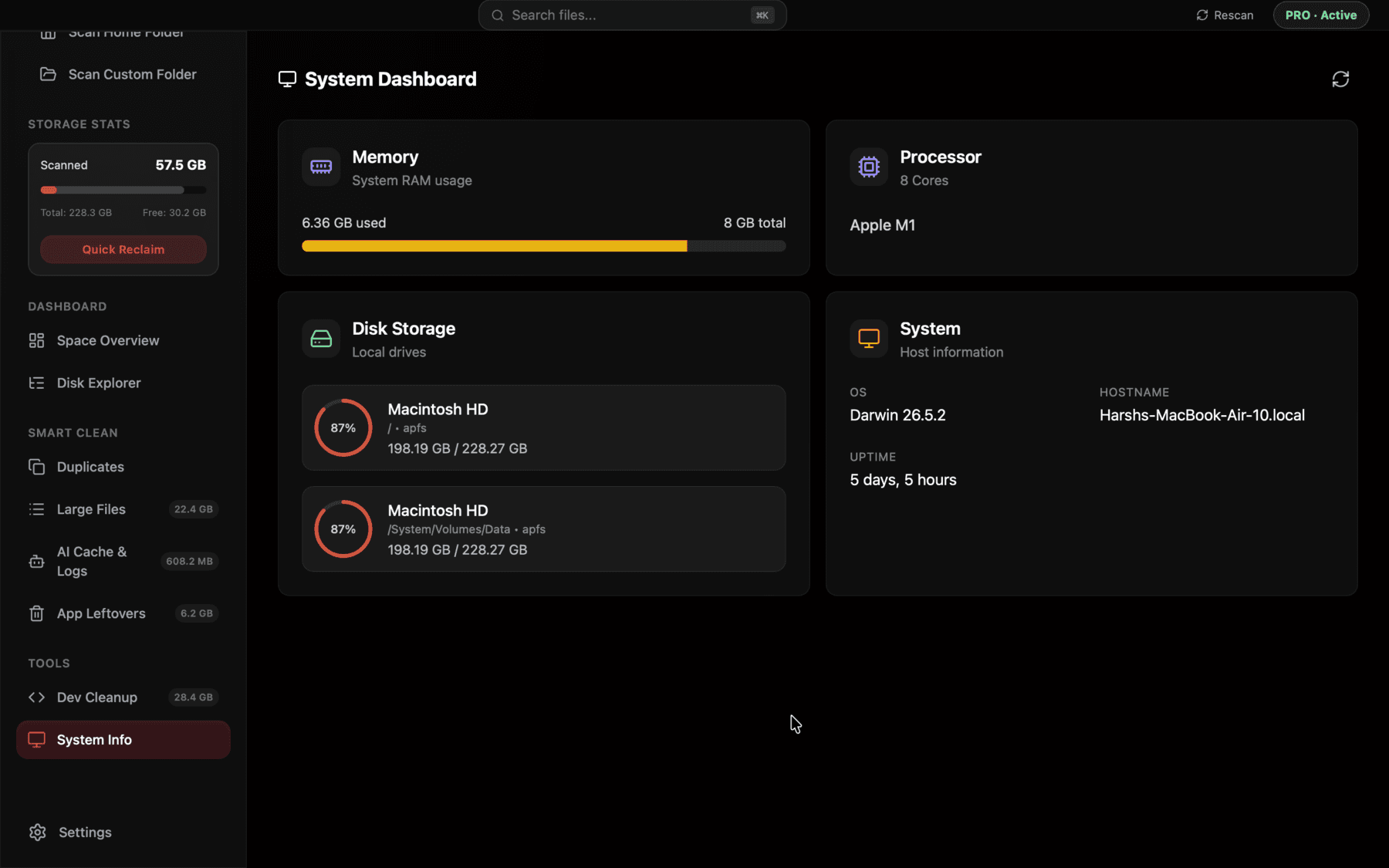
Local snapshot space shown as its own line item, next to the rest of your disk breakdown, instead of a fact you only learn by running tmutil.
When this problem tends to show up
Local snapshot buildup is most common right after a burst of heavy disk activity — migrating a large project, doing a big video edit, or running several large software installs in a short period. If a startup-disk-almost-full warning appears right after a day like that, checking tmutil listlocalsnapshots before anything else is usually the fastest way to find the actual cause, and it's often the single most effective first check across every scenario in this whole topic area.
It's also worth checking after restoring from a backup or migrating to a new Mac using Migration Assistant, since both processes can leave an initial snapshot in place that doesn't get thinned automatically right away, adding an unexpected chunk of purgeable space to a Mac that otherwise looks freshly set up and barely used. In each of these cases the fix is the same two commands covered above — list them, then thin or delete — regardless of what specifically triggered the buildup.
A realistic before-and-after
To make the scale concrete: it's common for a developer's Mac that hasn't had its snapshots checked in months to show 15-20 local snapshots via tmutil listlocalsnapshots /, collectively holding anywhere from 20GB to over 80GB depending on how much file churn happened during that window. Running tmutil thinlocalsnapshots / with a generous target, or working through them individually with deletelocalsnapshots, can bring that down to a handful of recent snapshots holding only a few gigabytes combined — often the single fastest cleanup win available on a Mac that's showing a low-disk warning with no other obvious cause.
It's worth checking again a week or two later, especially after another round of heavy file activity, since the same buildup pattern will start recurring immediately — snapshots are a rolling, continuously regenerating mechanism, not a one-time cleanup item you fix permanently. Building a habit of a quick tmutil listlocalsnapshots / check whenever you notice available space dropping faster than expected saves you from rediscovering this same explanation from scratch every time.
How local snapshots relate to actual Time Machine backups
It helps to be precise about the relationship here, since it's a common source of confusion. Local snapshots are not a copy of your data stored somewhere separate — they live on the same Data volume as the files they're a snapshot of, using APFS's copy-on-write mechanism to avoid duplicating unchanged data. A real Time Machine backup, by contrast, is a separate copy stored on an external drive or network destination, and it's what actually protects you against drive failure or theft.
When an external Time Machine drive is connected, macOS uses local snapshots as an efficient way to figure out what's changed since the last backup, then copies just the changes to the external drive. When no external drive is connected, the local snapshots still get created on their normal schedule, but they never make it to a real backup — they just sit on your Data volume as purgeable space until macOS thins them or you do it manually. This is precisely why a Mac that's rarely connected to its backup drive tends to accumulate more local snapshot bloat than one that's backed up daily.
Frequently asked questions
Do I have local Time Machine snapshots even if I never set up Time Machine?
Yes, in many cases. APFS and macOS can create local snapshots as part of standard system behavior, independent of whether you've configured Time Machine with an external drive.
Is it safe to delete local Time Machine snapshots?
Generally yes, especially if you have an actual backup elsewhere — they're a short-term local rollback mechanism, not a substitute for a real backup, and macOS will create new ones going forward as needed.
How do I see how much space local snapshots are using?
Run tmutil listlocalsnapshots / to see the snapshots themselves, and diskutil apfs list to see purgeable space in your APFS container, which includes snapshot data.
Why doesn't macOS automatically clear old snapshots when space is low?
It's supposed to, but automatic thinning can lag behind actual need, especially on Macs with heavy daily file churn where more snapshot data needs to be retained than usual.
What does tmutil thinlocalsnapshots actually do?
It asks macOS to free up roughly the amount of space you specify (in bytes) by removing older local snapshots first, though the actual amount freed can be less if snapshots are still needed for recent backup consistency.
Can local snapshots cause a sudden storage warning after a quiet period of Mac use?
Yes, particularly right after a burst of heavy file activity like a large project migration or video edit, since more disk blocks need to be retained across existing snapshots when a lot changes in a short window.
See exactly what’s using your disk space.