System Data Keeps Growing on macOS: The Full Explanation
Of all the categories in About This Mac → Storage, System Data is the one that seems to defy logic the most. You uninstall apps, empty Trash, clear Downloads — and System Data stays exactly the same size, or somehow grows anyway. On some Macs it climbs into the 80-150GB range, larger than every app installed combined, which understandably makes people suspect something is broken.
System Data isn't macOS itself (that's counted separately as the system volume, which is normally sealed and read-only). It's Apple's label for a mixed bag of caches, logs, temporary files, and support data that doesn't fit any of the other named categories. Unlike Other, which is mostly your own files the scanner can't classify, System Data leans more toward things macOS and your apps generate as a byproduct of running — which is exactly why it feels like it grows on its own no matter what you personally add or remove.
It's genuinely one of the more anxiety-inducing categories to look at precisely because it's so opaque — a user with no development tools installed at all can still see System Data reach 40-60GB purely from years of accumulated logs, caches, and diagnostic reports, with no clear single culprit to point at. That's very different from a category like Photos, where a large number at least corresponds to something you can picture and act on directly.
This post covers what's actually inside the category, in rough order of how much space each part typically contributes, so you can prioritize checking the largest likely culprits first rather than clearing small caches that were never the real problem.
What's actually inside System Data
The category covers a wide range of macOS and app-generated content, most of it invisible in normal Finder browsing:
- System and app logs under /private/var/log and ~/Library/Logs, which accumulate continuously for as long as the Mac has been in use.
- Caches under ~/Library/Caches and /System/Library/Caches — every app that renders web content, thumbnails, or fonts leaves cache files here, and most never clean up after themselves proactively.
- Xcode's CoreSimulator devices (~/Library/Developer/CoreSimulator/Devices) — each simulator runtime you've ever installed keeps its own device state, and these rarely get cleaned up automatically even after you stop testing against a given iOS version.
- Time Machine local snapshots, which macOS counts partly under System Data despite being tied to your Data volume's own files.
- Font caches, Spotlight indexes, and diagnostic reports from crashes and hangs, which are small individually but accumulate over months and years.
Why it never seems to shrink
Most of what's inside System Data is generated continuously by normal use — every app launch adds to a log, every web page you view in an app with an embedded browser adds to a cache, every Xcode build touches CoreSimulator state. macOS doesn't proactively clean most of this on a schedule; it accumulates until either you clear it manually or the system decides it needs the space under pressure. That's also why deleting apps doesn't shrink it — the apps you removed already left their caches and logs behind as orphaned data that nothing is currently responsible for cleaning up.
It's worth being clear-eyed about this: System Data growing isn't evidence of a malfunction. It's the predictable outcome of a system that generates diagnostic and cache data continuously and cleans very little of it up on its own, on the assumption that disk space is cheap and users won't mind. For most casual users that assumption holds up fine. For developers running Xcode, Docker, or several IDEs daily, it stops holding up well past a certain point.
Check what's actually contributing, with real numbers
These commands target the specific folders that typically make up the bulk of System Data:
- du -sh ~/Library/Logs — often several hundred MB to a few GB on a Mac that's been running a while.
- du -sh ~/Library/Caches — one of the largest single contributors; safe to clear for most apps, since caches are meant to be regenerable.
- du -sh ~/Library/Developer/CoreSimulator/Devices — frequently the single biggest System Data item for anyone using Xcode, sometimes 20-50GB across old simulator runtimes.
- xcrun simctl delete unavailable — removes simulator devices tied to runtimes you've since deleted, a safe first step before manually clearing the Devices folder.
- log show --last 1d --style compact | wc -l — not a size check, but a quick sanity check on how actively the unified logging system is writing, if you're curious why logs keep growing.
Docker Desktop and virtualization also land here
If you use Docker Desktop, it's worth knowing that its virtual machine disk image — the file backing the Linux VM Docker runs inside on macOS — is also frequently counted under System Data rather than as its own recognizable category, since it's one large opaque file from the scanner's point of view. Run docker system df to see images, containers, and volumes broken down, and consider running docker system prune periodically (with care — it removes stopped containers and unused images) if you find Docker's own footprint has grown well beyond what your currently running containers would need.
Clearing CoreSimulator specifically
If you use Xcode, CoreSimulator is worth checking on its own since it grows silently with every new simulator runtime version you install and rarely removes old ones automatically. Open Xcode → Settings → Platforms to see and remove old simulator runtimes you no longer test against, or run xcrun simctl delete unavailable from Terminal to clean up devices whose runtime no longer exists. It's common to find several old iOS runtime versions still installed from a project that shipped a year ago, each one holding onto multiple simulator device instances with their own storage footprint.
Seeing System Data broken into what it actually is
Because System Data is really several unrelated things bundled under one label, the fastest way to make progress is to see them broken apart by actual category rather than as one opaque number. Reclaim's scan surfaces CoreSimulator devices, log folders, and app caches as distinct, sized items rather than folding them into a single unexplained total, so you can decide what's worth clearing without guessing which subfolder is actually responsible for the size.
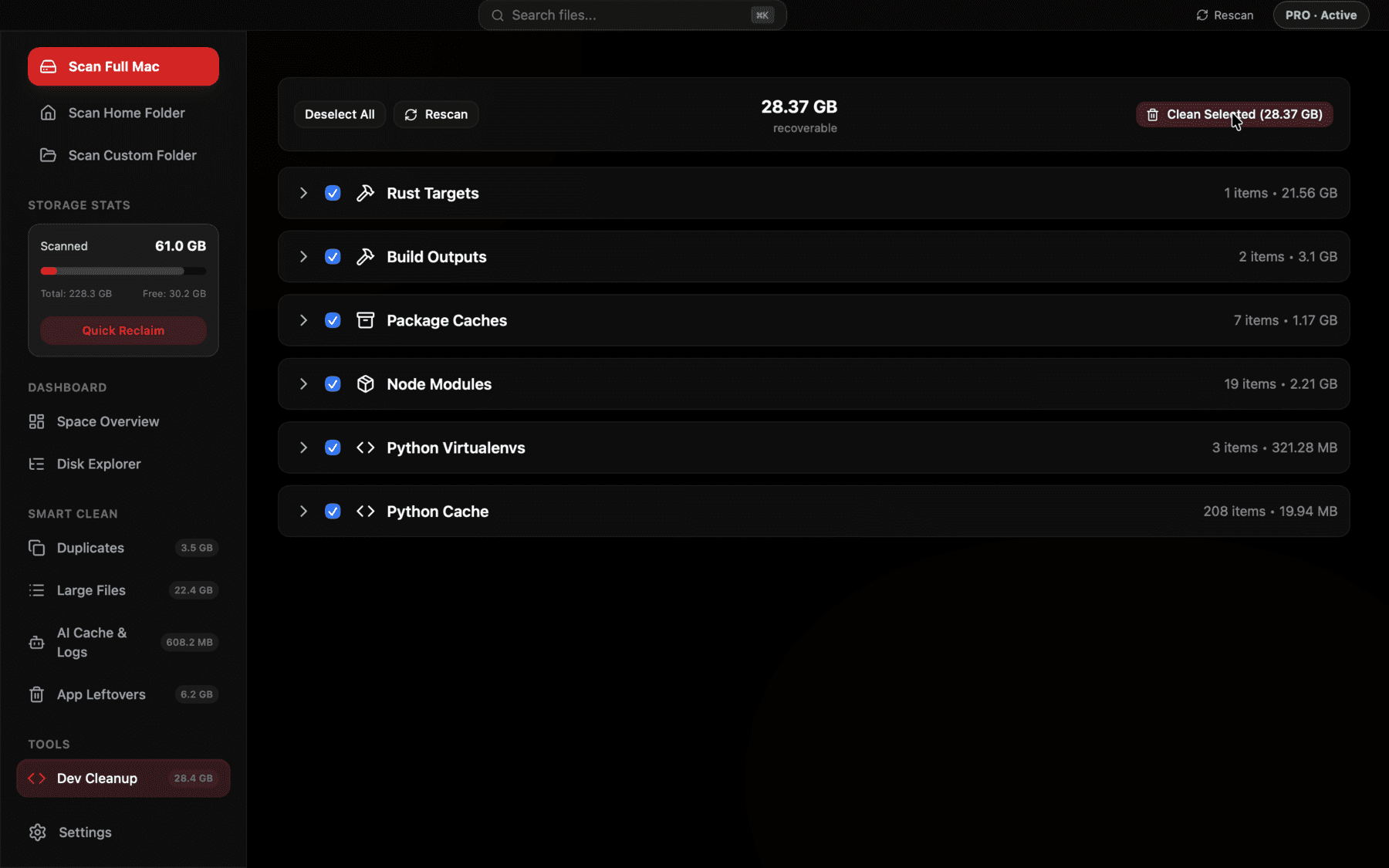
Xcode's CoreSimulator devices and DerivedData — two of System Data's biggest hidden contributors — shown as separate, sized, bulk-selectable groups.
How much you can realistically reclaim
For a non-developer Mac, clearing logs and app caches typically frees a few gigabytes. For a Mac used with Xcode, clearing unused CoreSimulator devices and old DerivedData can free tens of gigabytes in one pass, since both accumulate for as long as you've had the machine and are rarely cleaned proactively. It's not unusual to see a Mac go from a System Data category north of 100GB down to a fraction of that after clearing simulator devices and DerivedData alone, without touching a single personal file.
Why System Data specifically resists cleanup tools
Even people who are diligent about running cleanup utilities regularly often find System Data barely moves. Part of the reason is that many generic cleanup tools target well-known, static locations — browser caches, obvious temp folders — that make up a small fraction of what actually lives in this category on a developer's Mac. CoreSimulator devices in particular are easy for a generic tool to miss entirely, since recognizing them requires knowing Xcode's specific folder structure and runtime versioning scheme, not just scanning for large files.
The other reason is more structural: some of what's in System Data (like log files being actively written to, or a snapshot currently backing a Time Machine session) can't simply be deleted the way a stale download can — the OS itself is using it. A safe cleanup approach checks whether something is actually stale or unused before touching it, rather than deleting anything that matches a folder pattern, which is part of why this category takes more care than a straightforward Downloads-folder cleanup.
Mail, Messages, and other overlooked contributors
Two categories worth checking separately, since they're easy to forget about entirely: Mail's downloaded attachments, stored under ~/Library/Mail, can quietly grow into the tens of gigabytes if you've had the same account connected for years and Mail downloads full attachments automatically. Messages attachments work similarly under ~/Library/Messages/Attachments, especially if you've sent or received a lot of photos and videos over iMessage. Neither shows up as a distinct line in About This Mac's categories the way you'd expect — both usually get folded into System Data alongside everything else.
You can check Mail's downloaded attachment footprint with du -sh ~/Library/Mail, and Messages attachments with du -sh ~/Library/Messages/Attachments. Neither is safe to delete blindly with rm, since the files are tied to your actual message history, but Mail and Messages both have in-app settings to control automatic attachment downloading going forward, which prevents the category from continuing to grow at the same rate.
Frequently asked questions
What is System Data on a Mac and why is it so large?
It's Apple's category for caches, logs, and support files generated by macOS and your apps as a byproduct of normal use — including Xcode's CoreSimulator devices, which are a common cause of it growing very large on developer Macs.
Does deleting apps reduce the System Data category?
Rarely. Apps typically leave cache, log, and support files behind after uninstall, and these get counted in System Data separately from the app itself.
Is it safe to delete ~/Library/Caches?
Yes, caches are meant to be regenerable — apps will recreate what they need. You may notice some apps feel briefly slower right after, as they rebuild cached data.
How do I clear old Xcode simulator devices?
Run xcrun simctl delete unavailable in Terminal to remove devices tied to runtimes you no longer have installed, or manage them directly in Xcode → Settings → Platforms.
Will clearing System Data delete my personal files?
No, if you stick to logs, caches, and simulator devices. Avoid deleting anything under Application Support without checking what it is first, since some apps store real user data there, not just cache.
Why does System Data keep growing even on a Mac I barely use?
Background processes, automatic updates, Spotlight indexing, and diagnostic logging all run continuously regardless of active use, and none of it is cleaned up on a schedule by default.
See exactly what’s using your disk space.