CleanMyMac Alternatives in 2026: What Actually Works (and What's Just Bloatware)
Search “CleanMyMac alternative” and you'll get a wall of near-identical roundup posts, most written by affiliates who haven't actually installed the tools they're ranking. That's not useful if you're staring at a “Your disk is almost full” banner and trying to figure out what to actually run.
This isn't that post. Below is an honest breakdown of the real categories of Mac cleanup tools available in 2026 — what each one is actually good at, what it isn't, and what to check before you trust any of them with disk access. No tool here gets trashed unfairly, and none gets a free pass either.
The reason this search is so frustrating is that the tools aren't actually interchangeable — they solve different slices of the same underlying problem, and the right pick depends heavily on how comfortable you are in Terminal, how much you're willing to pay, and whether your disk bloat comes from ordinary files or from developer and AI tooling most consumer cleaners don't know exists.
Start with what's already on your Mac
Before installing anything, it's worth knowing what macOS already gives you, because for some people it's genuinely enough. Go to the Apple menu, About This Mac, then Storage, and click Manage. This panel shows a category breakdown (Applications, Documents, System Data, and so on) and offers a few built-in actions: Store in iCloud, Optimize Storage (which removes watched TV shows and downloaded email attachments you've already read), and Empty Trash Automatically.
What it's good at: freeing space with zero third-party risk, since it's Apple's own code touching your files. What it isn't good at: precision. It won't tell you which folder inside “System Data” is 40GB, it won't find node_modules or duplicate photos, and “Other” or “System Data” often hides more than it explains — that's a big enough problem on its own that it deserves its own explainer, which is why we wrote about why About This Mac's storage numbers don't add up.
If you just need a quick 5-10GB back and your Mac is mostly used for email, browsing, and streaming, this panel alone might be all you need. It's worth trying first, if only to rule it out, before installing anything third-party at all.
Free, open-source disk visualizers
The next tier is free, open-source tools that show you where space is going without offering to delete anything for you. GrandPerspective and OmniDiskSweeper are the two most commonly recommended on macOS forums, and both have been around for well over a decade. GrandPerspective draws a treemap — a rectangle for every file, sized proportionally — so you can visually spot the one enormous folder buried six levels deep. OmniDiskSweeper is closer to a sortable file browser: point it at a folder and it lists everything inside by size, largest first.
What they're good at: being transparent about what they do (you can read the source), and costing nothing. What they're not good at: they're pure visualizers. Neither one understands that a folder named node_modules is safe to delete and regenerable, or that ~/Library/Caches/com.docker.docker is a Docker cache and not a personal file. You still have to bring the domain knowledge yourself — good if you have it, a wall if you don't.
This is also the category worth trying if your instinct is not to trust any tool with delete permissions at all. A pure visualizer that never touches your files removes an entire category of risk — you look, you decide, and you delete manually through Finder yourself, one folder at a time.
Paid all-in-one cleaners
This is the category CleanMyMac itself sits in, alongside a handful of similar paid utilities. These bundle a disk visualizer with automated "smart" scans, uninstallers, duplicate finders, and system maintenance scripts (clearing caches, rebuilding Spotlight index, that kind of thing), usually behind a subscription.
What they're generally good at: a polished, guided experience for people who don't want to touch Terminal or think about file paths at all — everything is one click, with descriptions in plain English. Many also bundle useful adjacent utilities — app uninstallers that try to catch leftover files, menu bar system monitors, malware scanners — that go beyond pure disk cleanup.
What to actually check before trusting one, rather than take on faith: does it need Full Disk Access and explain why, is it sandboxed and notarized by Apple, does it delete via Trash or straight away, and is the subscription cost proportional to how often you'll actually use it. We go deeper on exactly how to check all of this in a companion post on vetting any Mac cleaner app before installing it — the criteria matter more than the brand name.
It's also worth being honest that "Smart Scan" style one-click cleanups in this category tend to be broad by design — they're built to feel satisfying and safe for a mainstream audience, which sometimes means being conservative about what counts as safe to remove, and other times means clearing browser caches or logs more aggressively than a developer might want. Reading what a scan found before clicking Clean, rather than trusting the single big green button, is worth doing regardless of which app you use.
Where Reclaim fits in this picture
Reclaim is a smaller, newer entry, and it's worth being upfront about what it is and isn't. It's a native Rust and Tauri app, a universal binary under 7MB, that scans your whole disk into an interactive treemap for free — the scan, the treemap, the duplicate finder, the AI cache breakdown, and the dev cache finder are all free to use and see, with no account or trial timer. Unlocking actual deletion is a one-time lifetime purchase, not a subscription.
It's signed with an Apple Developer ID certificate and notarized by Apple, so it launches normally on first open — no right-click, Open workaround and no Gatekeeper warning, which is the baseline you should expect from anything asking for Full Disk Access. What it has going for it beyond that: every deletion moves files to the macOS Trash, never a direct unrecoverable delete, and it's built with the kind of developer- and AI-tool awareness that generic cleaners tend to miss entirely, like knowing the difference between a Cargo target/ folder and an Ollama model cache.
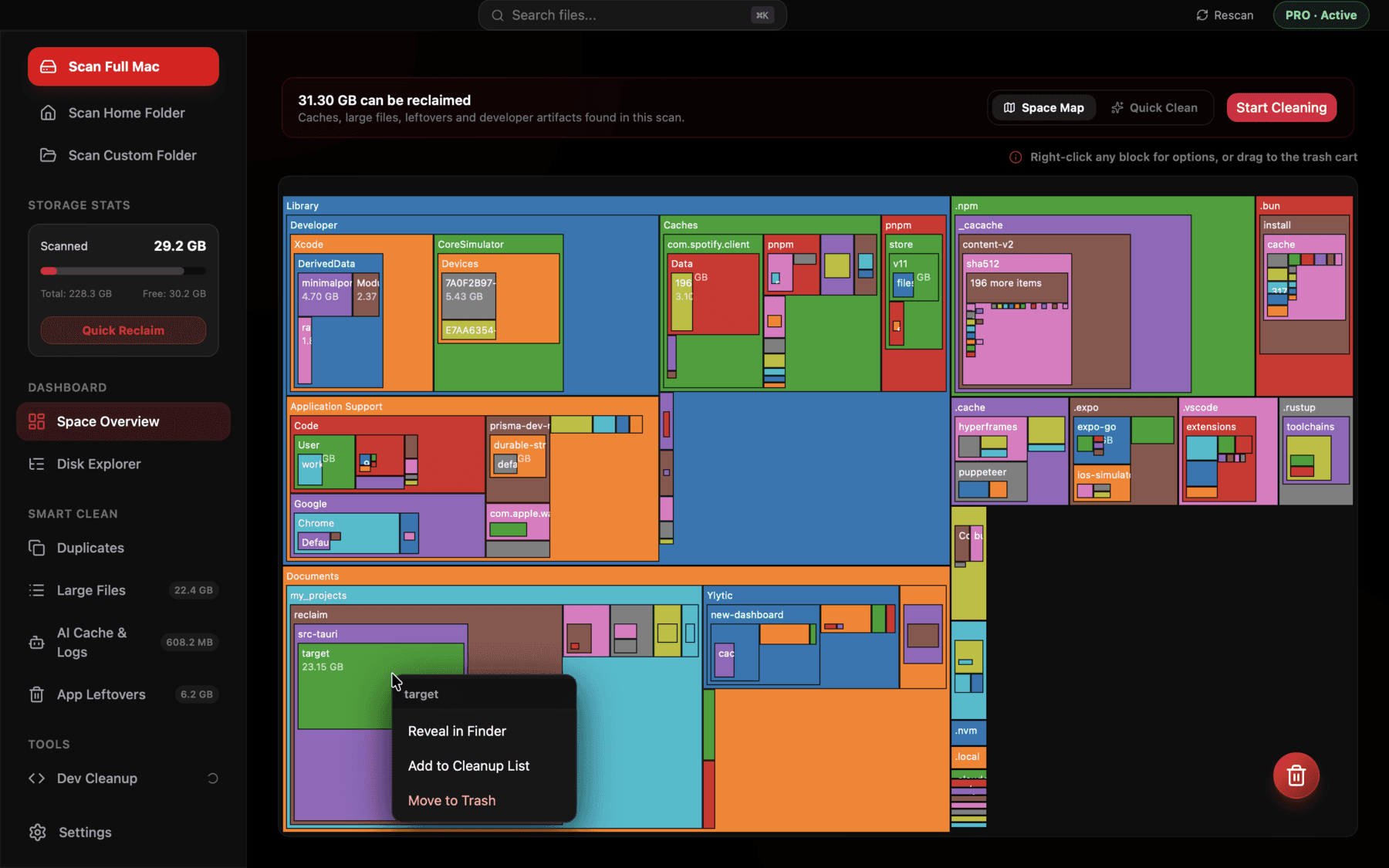
The full-disk scan and treemap are free to explore indefinitely — no account, no trial clock.
Command-line tools, for people who'd rather not install anything
It's worth remembering that Terminal alone gets you a surprising amount of the way there, with zero installs and zero permissions to weigh. `du -sh ~/Library/*` gives a top-level size breakdown of your Library folder's subfolders in one command. `docker system df` shows exactly how much space Docker's images, containers, and volumes are using, if you have it installed. `find ~/Downloads -type f -mtime +180` lists every file in Downloads untouched for six months — a solid starting point for a manual cleanup pass.
None of this scales well to a whole disk, and none of it groups things into categories the way a dedicated tool does, but for a targeted "why is this one folder so big" question, it's often faster than opening any app at all.
The checklist that matters more than any single recommendation
Whichever tool you land on, the questions worth asking are the same regardless of brand:
- Does it explain why it needs Full Disk Access, and can you see that request in System Settings > Privacy & Security before you grant it?
- Does it delete via the Trash (recoverable) or does it call something equivalent to rm -rf (not recoverable)?
- Is the pricing model proportional to how often you'll use it — a one-time purchase for an occasional cleanup, versus a recurring subscription for a tool you'll open monthly?
- Can you find independent reviews or a changelog, not just the vendor's own marketing page?
- Does it hardcode protection for system paths like /System and /Library, or does it just warn you and trust you to be careful?
The honest bottom line
There isn't one correct answer here. If you're comfortable in Terminal and just want to see where space went, GrandPerspective or OmniDiskSweeper plus `du -sh` on a few suspect folders will get you most of the way for free. If you want a guided, all-in-one experience and don't mind a subscription, a paid cleaner like CleanMyMac covers more ground with more hand-holding. If you specifically write code or run local AI models and want free visibility plus a one-time unlock for actual cleanup, that's the gap Reclaim is built to fill.
Whichever you pick, spend five minutes on the checklist above first. It matters more than any ranking on a listicle, including this one.
Frequently asked questions
Is CleanMyMac safe to use?
CleanMyMac is a notarized, established product with a long track record. As with any cleaner, review what permissions it requests and understand what its "Smart Scan" deletes before running it — the safety comes from your own review, not the brand name alone.
What's the best free alternative to CleanMyMac?
For pure visibility into what's using space, GrandPerspective (treemap) and OmniDiskSweeper (sorted list) are the most established free, open-source options. Neither one deletes files for you automatically.
Do I need a paid app to clean up my Mac?
No. macOS's own About This Mac > Storage > Manage panel, combined with manually checking folders like ~/Library/Caches and ~/Downloads, can reclaim meaningful space for free. Paid tools mainly save you time and manual digging, not capability you couldn't do yourself.
What should I check before installing any Mac cleaner app?
Whether it needs Full Disk Access and explains why, whether it deletes to Trash or permanently, whether it's a subscription or one-time purchase, and whether it's notarized by Apple.
Is Reclaim a replacement for CleanMyMac?
It overlaps in some areas — duplicates, large files, disk visualization — but Reclaim is more narrowly focused on developer and AI tool caches, and is free to scan with a one-time paid unlock for deletion rather than a subscription. Both are signed and notarized by Apple.
See exactly what’s using your disk space.