Ollama Is Quietly Filling Your Mac With Hundreds of GB of Model Weights
Ollama makes running a local model feel almost weightless: one command, `ollama run llama3`, and a few minutes later you're chatting with a model that lives entirely on your machine. What that command doesn't make obvious is that the model itself — every layer, every quantization you've ever tried — stays on disk indefinitely, whether you use it again or not.
If you've been experimenting with Ollama for more than a few weeks — pulling a model to test it, switching to a different quantization, trying the same model in a different size — there's a good chance you're sitting on 100-300GB of model weights you forgot existed. None of it shows up in Activity Monitor or About This Mac in a way that points back to Ollama specifically.
This isn't a flaw in Ollama so much as a natural consequence of how frictionless it makes pulling a model. There's no confirmation dialog warning you that `ollama pull` is about to write another 5-40GB to disk, and no built-in nudge to remove anything once you've moved on to a different model. The result is a tool that's genuinely excellent at the thing it does, paired with a storage footprint that grows in a way almost nobody actively tracks.
Where Ollama actually stores models
By default, Ollama stores everything under `~/.ollama/models` on macOS. Inside that directory you'll find two subfolders that matter: `manifests`, which holds small JSON files describing each model tag you've pulled, and `blobs`, which holds the actual weight data as large content-addressed files with names like `sha256-a1b2c3...`.
The blobs directory is where the space actually lives. Because blobs are content-addressed, Ollama can technically deduplicate identical layers shared between model variants — but in practice, most models you pull have their own full set of layers, so the space adds up close to linearly with the number of distinct models and quantizations you've downloaded.
You can check the total size with a single command:
- du -sh ~/.ollama/models — total size of everything Ollama has downloaded
- du -sh ~/.ollama/models/blobs/* | sort -rh | head -20 — the 20 largest individual blob files
Seeing what's actually installed
Ollama has a built-in command that's more useful than digging through the filesystem directly: `ollama list` prints every model tag you have locally along with its size. It's the fastest way to spot the obvious offenders — a 70B model you pulled once to see if your Mac could handle it, or three different quantizations of the same 7B model you were comparing.
Model sizes vary a lot depending on parameter count and quantization. As a rough guide: a 7B model at Q4_K_M quantization typically lands around 4-5GB, a 13B model in the same quantization runs roughly 7-8GB, and a 70B model — even quantized — is usually 35-40GB or more. Pull two or three sizes of the same model family to compare quality, and you've already used up a meaningful chunk of your SSD.
It's worth running `ollama list` right now if you haven't in a while — most people who do this for the first time in months are surprised by at least one entry they'd completely forgotten pulling, usually something downloaded to answer a one-off question like "how does the 34B version compare to the 7B" that never got revisited afterward.
Removing models you don't need
Deleting a model through Ollama itself is the right way to do it, rather than manually deleting files out of `~/.ollama/models` — the manifest and blob files are linked by hash, and hand-editing the directory can leave orphaned blobs behind that don't map to any manifest anymore.
The command is straightforward:
- ollama list — see every model and its size first
- ollama rm <model:tag> — remove a specific model, e.g. ollama rm llama3:70b
- ollama list again afterward to confirm it's gone, then re-check du -sh ~/.ollama/models to see the space actually freed
Orphaned blobs and the cleanup Ollama doesn't do automatically
Even with `ollama rm`, it's worth periodically checking for blobs that no manifest references anymore — this can happen after interrupted pulls or manual model file edits. Ollama's own maintainers have acknowledged this as a known rough edge; there's no built-in `ollama gc` command as of recent versions, so the practical fix is comparing blob sizes against what `ollama list` reports and investigating anything that doesn't add up.
An interrupted pull is the most common cause — if a `ollama pull` gets cancelled partway through a multi-gigabyte download, whatever blob data had already been written doesn't always get cleaned up automatically, and it sits in the blobs folder unreferenced by any complete manifest. Over a year of occasional dropped downloads on a flaky connection, these orphaned partial blobs can add up to several gigabytes of dead weight that no ordinary Ollama command surfaces.
This is exactly the kind of per-tool bookkeeping that's easy to let slide, because none of it is visible unless you go looking for it specifically. A general disk-usage view won't tell you that 40GB under `~/.ollama` breaks down into one active model and four you tried once — you'd need to cross-reference `ollama list` output against blob sizes by hand.
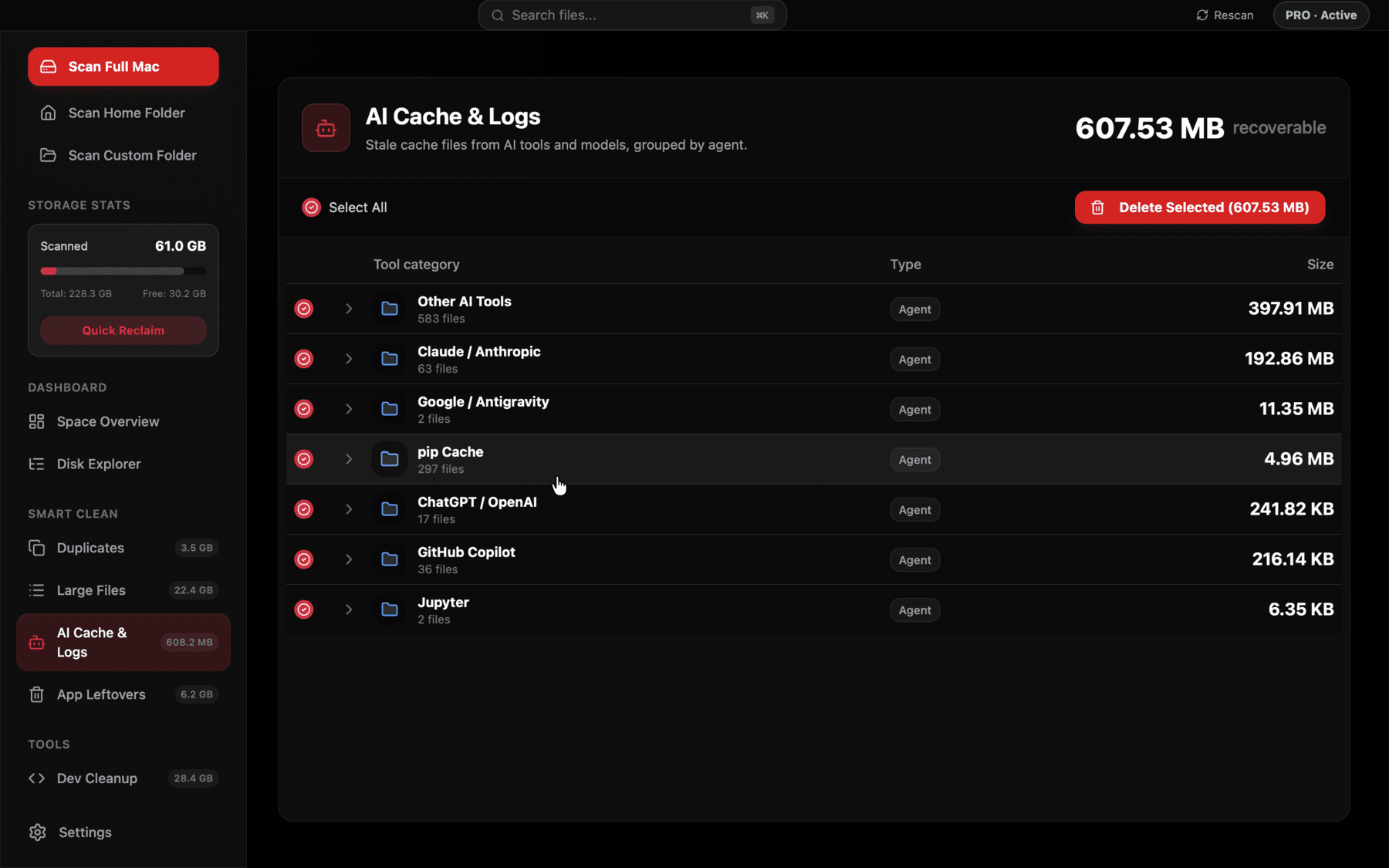
Reclaim's AI Cache & Logs view detects Ollama's model directory specifically and shows you the size breakdown without needing to run ollama list and du side by side.
Changing where Ollama stores models
If you want models to live somewhere other than your boot volume — an external SSD, for example — Ollama respects the `OLLAMA_MODELS` environment variable. Setting it before starting the Ollama service (`export OLLAMA_MODELS=/Volumes/ExternalSSD/ollama-models`) moves new pulls to that location; existing models already under `~/.ollama/models` need to be moved manually if you want them to follow.
This is worth doing early if you know you'll be pulling large models regularly, since moving an existing 200GB models directory after the fact means downtime while the copy completes and updating the environment variable permanently in your shell profile.
Confirming the space was actually freed
On APFS, the filesystem macOS has used since 2017, deleting a large file should free the space immediately and reflect in About This Mac within a few seconds — there's no separate emptying-the-Trash step needed for `ollama rm`, since it deletes the underlying files directly rather than routing through Finder's Trash. If `du -sh ~/.ollama/models` doesn't show a smaller number right after removing a model, it's worth double-checking that the model tag you removed was the one you intended — `ollama list` immediately after the removal confirms exactly what's left.
It's also worth checking Spotlight isn't independently indexing the models directory — by default it shouldn't, since `~/.ollama` is a hidden dotfile directory that Spotlight typically skips, but if you've customized indexing settings it's a location worth explicitly excluding, both to save indexing time and because there's no benefit to search-indexing multi-gigabyte binary weight files.
Why quantization names matter when you're comparing sizes
Every Ollama model tag encodes a quantization level, even when it's not obvious from the name alone — `llama3:8b` without a suffix typically defaults to a Q4-class quantization, while explicit tags like `llama3:8b-instruct-q8_0` or `llama3:8b-instruct-fp16` point at higher-precision, larger versions of the same weights. It's easy to end up pulling what you think is "the same model" twice at two different quantizations without realizing it, simply because the tag naming isn't always self-explanatory at a glance.
Before pulling a new tag to test something, running `ollama list` and scanning for a similar model name is worth the ten seconds — a fair number of the surprise duplicates found in `~/.ollama/models` turn out to be the exact same model at two quantization levels pulled a few weeks apart, one of which is quietly outperforming the other in disk usage without any benefit in output quality that most people notice day to day.
A realistic cleanup routine
The models worth keeping are the ones you actually use day to day — usually one or two. Everything else pulled for a one-off comparison or benchmark is a candidate for removal the moment you're done with it, since re-pulling later is just a re-download, not a rebuild from scratch like a compiled dependency.
A reasonable habit: run `ollama list` monthly, remove anything you haven't used since the last check, and keep an eye on `~/.ollama/models` size relative to your free disk space. If you're managing this across multiple AI tools at once — Ollama plus LM Studio plus a coding assistant's own cache — Reclaim's AI Cache & Logs view groups all of them by tool in one pass so you're not running separate commands for each.
It's also worth checking in on this after any period of heavier experimentation specifically — a weekend spent comparing three model families for a side project is exactly the kind of session that leaves 40-60GB behind afterward, and it's much easier to clean up right away, while you still remember which model was which, than to reconstruct that context from a list of hashed blob filenames months later.
Frequently asked questions
Where does Ollama store downloaded models on macOS?
By default, under ~/.ollama/models, split into a manifests folder (small metadata files per model tag) and a blobs folder (the actual weight data, often the vast majority of the space).
How do I see how much disk space Ollama is using?
Run du -sh ~/.ollama/models for the total, or ollama list to see each installed model's size individually.
How do I delete a model in Ollama?
Use ollama rm <model:tag>, for example ollama rm llama3:70b. Don't delete files manually from ~/.ollama/models/blobs — the manifest and blob files are linked by hash.
How big is a typical Ollama model?
A 7B model at Q4 quantization is roughly 4-5GB, a 13B model roughly 7-8GB, and a 70B model roughly 35-40GB, though exact sizes vary by quantization level.
Can I move Ollama's model storage to an external drive?
Yes, set the OLLAMA_MODELS environment variable to a new path before starting the Ollama service. Existing models won't move automatically — you'd need to copy the directory yourself.
Does Ollama deduplicate model files automatically?
Blobs are content-addressed by hash, so identical layers shared between tags can in theory be reused, but most distinct model pulls still add their own full set of layers, so space grows close to linearly with how many models you've pulled.
See exactly what’s using your disk space.