Running Local LLMs on Your Mac? Here's the Storage Bill Nobody Warns You About
Running large language models locally on a Mac has gone from a niche hobbyist project to something a lot of developers do routinely — for privacy, for offline use, for not paying per-token for something you can run on hardware you already own. What rarely gets mentioned in the setup guides is the ongoing storage cost of doing this seriously: every model you download, test, fine-tune, or compare against another one is a multi-gigabyte file that sits on your SSD until you explicitly remove it.
This isn't a criticism of local AI — it's genuinely one of the better developments in how people can use these models. But it introduces a category of disk usage that didn't really exist for most people three years ago, and it's worth understanding the real numbers before your 512GB or 1TB drive quietly runs out.
It's also a cost that scales with curiosity rather than with actual need — the more model families and quantizations you're curious enough to try, the more you accumulate, regardless of how many you end up using regularly. That asymmetry is worth keeping in mind: the storage bill is driven almost entirely by exploration, not by the one or two models doing the actual daily work.
Apple Silicon's unified memory architecture is a big part of why this trend accelerated — a Mac with enough RAM can run surprisingly large quantized models at usable speeds without a discrete GPU, which is exactly why so many developers went from reading about local LLMs to actually running several of them side by side within the space of a year.
The actual size math
Model file size is driven by two things: parameter count and quantization level. Quantization trades a small amount of quality for a large reduction in file size, which is why almost everyone running models locally uses a quantized format rather than the full-precision weights researchers train with.
- 7B parameter models at Q4_K_M quantization: roughly 4-5GB
- 13B parameter models at Q4_K_M: roughly 7-8GB
- 30-34B parameter models at Q4_K_M: roughly 18-20GB
- 70B parameter models at Q4_K_M: roughly 35-40GB
- Higher-precision quantizations (Q8, F16) roughly double to quadruple these sizes for the same parameter count
Where these files actually accumulate
The specific path depends on which tool downloaded the model, and it's common to have more than one of these on the same machine:
- Ollama: ~/.ollama/models, split into manifests and content-addressed blobs
- LM Studio: ~/.cache/lm-studio/models by default, or a custom directory if you've configured one in settings
- Direct HuggingFace downloads (via transformers, diffusers, or huggingface-cli): ~/.cache/huggingface, specifically the hub subfolder
- Stable Diffusion / ComfyUI: checkpoint files typically under the tool's own models/checkpoints directory, often several gigabytes per checkpoint
The multiplication problem
The real storage cost of local LLMs rarely comes from one model — it comes from comparison. Anyone seriously evaluating local models for a task ends up pulling several: Llama, Mistral, and Qwen at a similar parameter count, or the same model at two different quantizations to judge whether the quality drop from Q4 to Q8 actually matters for their use case. Each of those is a full, separate multi-gigabyte file, and it's genuinely useful to keep more than one around temporarily while testing — the problem is that "temporarily" often becomes permanent by default, since nothing prompts cleanup once testing is done.
This pattern tends to repeat every time a notable new open-weight model family releases — a fresh round of downloads to see how the new release compares to whatever you were already using, on top of everything from the last round that never got cleaned up. Over a year or two of following model releases even casually, this compounds into a genuinely large amount of dead weight sitting across several tools' storage directories.
A developer who's tried a handful of model families across a couple of tools over a few months can easily accumulate 150-300GB in downloaded weights, most of it from models they settled against and never opened again.
None of this shows up as a single alarming download, either — a 5GB model here, a 20GB model there, spread across weeks or months of casual experimentation, none of which individually feels like a decision worth reconsidering later.
Fine-tuning and LoRA adapters add their own footprint
If you've gone a step further than just downloading pre-trained models and started fine-tuning or applying LoRA adapters locally — common with tools like MLX on Apple Silicon or llama.cpp's own fine-tuning support — each training run and each resulting adapter or merged checkpoint is additional storage on top of the base model it was derived from. A LoRA adapter itself is usually small, often under a gigabyte, but a fully merged fine-tuned checkpoint is typically the same size as the base model it started from, meaning a single fine-tuning experiment can add another 4-40GB depending on the model size involved.
Unlike a downloaded base model, these are worth treating differently during cleanup — a fine-tuned checkpoint represents actual work and often can't be regenerated without the original training data and enough time to rerun the training job, so it deserves a backup pass before any broad cleanup rather than being treated as disposable the way a stock download is.
Auditing what you actually have
Before deleting anything, it's worth getting a full picture across every tool rather than cleaning up one at a time:
- ollama list — every Ollama model with size
- du -sh ~/.cache/lm-studio/models/*/* | sort -rh | head -20 — largest LM Studio model folders
- du -sh ~/.cache/huggingface/hub/* | sort -rh | head -20 — largest HuggingFace-cached models
- du -sh ~/.ollama/models ~/.cache/lm-studio/models ~/.cache/huggingface — total per tool, to see the overall split
What's actually safe to delete
Model weights are, in one important sense, like a dependency cache: if you delete one and later want it again, it's a re-download, not a rebuild from source. That makes the decision lower-stakes than it feels — there's no unique data being destroyed, just bandwidth and time spent re-fetching if you're wrong. The exception is any model you've fine-tuned or modified locally; a custom LoRA or merged checkpoint you built yourself doesn't come back from a re-download, so those are worth backing up separately before any cleanup pass.
A reasonable rule: keep the one or two models you actually use regularly for each task (chat, code completion, whatever), and remove everything kept only for a past comparison. Remove duplicate quantizations of the same model once you've picked a favorite — there's rarely a reason to keep both a Q4 and Q8 version of the same weights long-term.
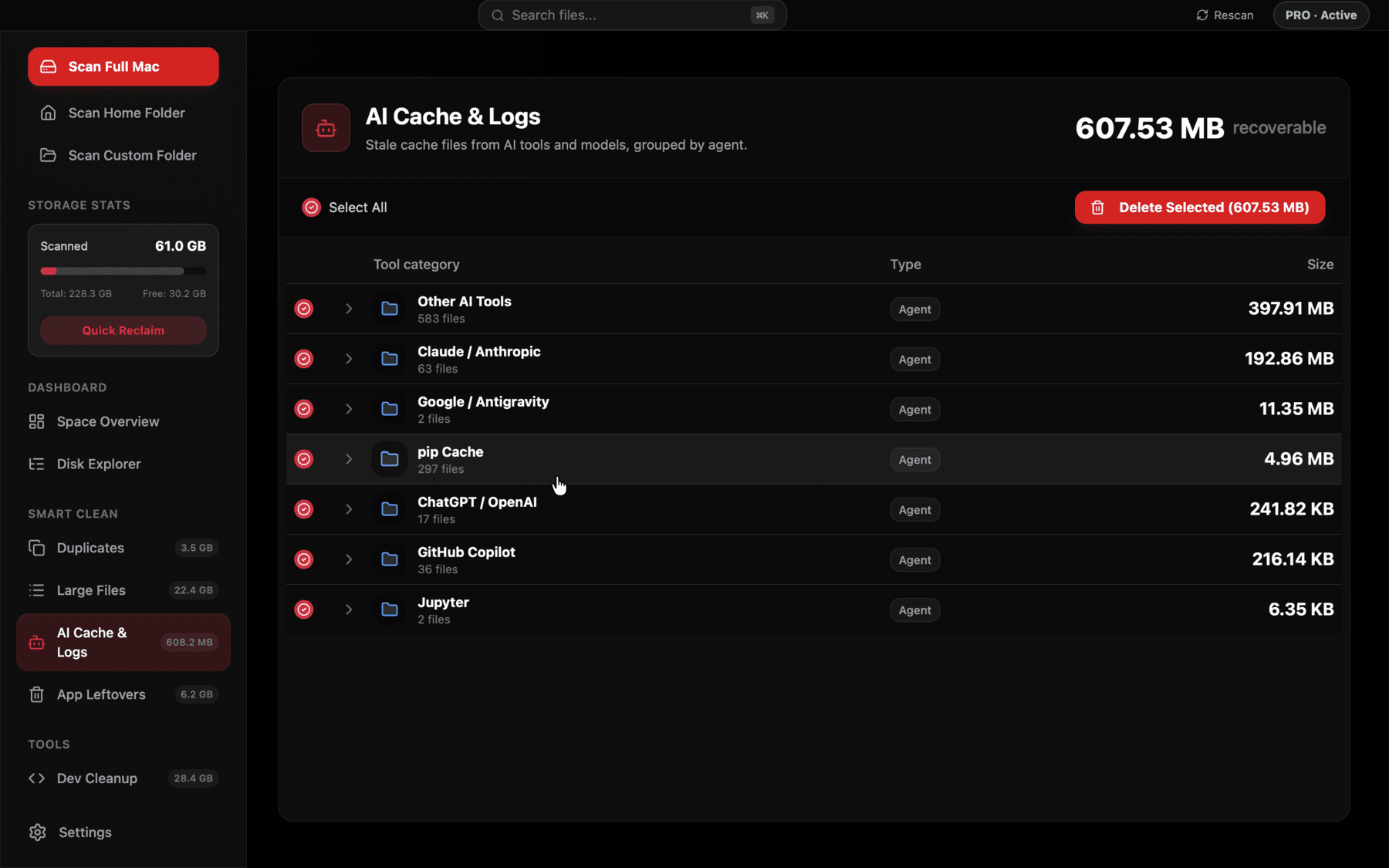
Reclaim's AI Cache & Logs view scans Ollama, LM Studio, HuggingFace, and other local AI tools in one pass and lists every model with its size, so an audit across tools doesn't mean running separate commands for each one.
The RAM-versus-storage tradeoff people don't plan for
There's a related decision that pushes storage usage up further: choosing a larger quantization specifically because your Mac has enough unified memory to run it comfortably. A machine with 64GB or 128GB of RAM can run a 70B model at Q8 rather than Q4 without the same performance penalty a lower-memory machine would face — but that choice, made purely for output quality, roughly doubles the file size sitting on disk compared to the more common Q4 default, on top of whatever smaller models are already kept around for lighter tasks.
It's worth deciding deliberately, model by model, whether the quality difference between quantization levels is one you can actually perceive in your typical use case, rather than defaulting to the largest quantization your hardware can technically run just because it's available.
Preventing this from becoming a recurring problem
The underlying cause here isn't any one tool doing something wrong — it's that downloading a model is a single frictionless action with no reminder to ever reverse it, repeated across multiple tools that don't know about each other. A HuggingFace download and an Ollama pull of the same model look identical from inside their respective tools and completely invisible to each other.
Building a habit of checking model storage on a regular cadence — monthly is reasonable for anyone actively experimenting — keeps this from turning into the kind of 200GB surprise that only gets addressed once About This Mac starts warning you storage is almost full.
The tools themselves are unlikely to solve this on their own initiative, since none of them have visibility into what the others are storing, and none currently prompt users to review old downloads. Until that changes, the practical fix is the same one that's worked for every other kind of accumulating cache: check periodically, remove what you're not using, and keep the models that are actually earning their space on your drive.
Frequently asked questions
How much disk space do local LLMs actually use?
Individually, a 7B model is roughly 4-5GB, a 13B model roughly 7-8GB, and a 70B model roughly 35-40GB at common Q4 quantization. Across several models tried for comparison, total usage of 100-300GB is common.
Which tools store local AI models, and where?
Ollama stores models under ~/.ollama/models, LM Studio under ~/.cache/lm-studio/models by default, and direct HuggingFace downloads under ~/.cache/huggingface/hub — each is a separate copy even for the same model.
Is it safe to delete a local LLM you're not using?
Yes, in almost all cases — the model can be re-downloaded if needed later. The exception is a model you've fine-tuned or modified yourself, since that specific version won't come back from a re-download.
Why do I have the same model downloaded twice?
Different tools maintain separate, non-shared caches. Pulling the same model through Ollama and also through a Python script using HuggingFace's transformers library results in two independent copies on disk.
What's the difference between Q4 and Q8 quantization for storage?
Higher-precision quantizations like Q8 or F16 roughly double to quadruple the file size compared to Q4 for the same parameter count, in exchange for a small quality improvement that's often not noticeable for everyday use.
How often should I audit local AI model storage?
Monthly is a reasonable cadence for anyone actively experimenting with multiple models; less frequent use can go longer between checks since the accumulation is gradual rather than sudden.
See exactly what’s using your disk space.