My Mac Says It's Full But My Files Only Add Up to 40GB
This is the most frustrating version of the storage problem: you've actually done the math. You added up Documents, Desktop, Photos, Downloads, and your apps, and it comes to maybe 40GB. Your Mac has a 512GB drive. And yet you're getting low-disk-space warnings with barely 20GB free — which means somewhere between your careful count and reality, 400+ GB has gone somewhere you haven't looked.
The gap is real, and it's not a bug. Almost all of it comes from three places that never show up when you eyeball your Home folder in Finder: hidden folders (anything starting with a dot, plus ~/Library, which Finder hides entirely by default), files nested many folders deep that Finder's size calculation doesn't total for you clearly, and system-level space like local snapshots and swap that isn't a "file" you'd ever click on in the first place.
If you've genuinely checked every visible folder and the math still doesn't work, the rest of this post is a systematic way to find exactly where it went, starting with the most commonly overlooked spot.
Why this feels worse than a normal storage warning
There's a specific kind of frustration that comes from having actually done the diligent thing — checking your files, adding them up, confirming they're reasonable — and still being told your Mac is nearly full. It's different from simply not knowing where to look; you looked, and the numbers genuinely don't reconcile using only the tools Finder gives you by default. That's a legitimate gap in what Finder shows, not a sign you missed something obvious in your own folders.
The good news is that this specific version of the problem — files add up to far less than actual disk usage — has a small, well-defined set of usual explanations, covered below in the order they're worth checking.
Finder is hiding a lot of what you'd need to see
By default, Finder hides ~/Library entirely and doesn't show dotfiles (folders like ~/.cache, ~/.npm, ~/.docker). These aren't obscure edge cases — ~/Library alone commonly holds tens of gigabytes of app support data, caches, and container storage for sandboxed apps. To see hidden files in Finder, press Command+Shift+Period in any Finder window. It's a start, but Finder still won't total folder sizes for you the way Terminal will, and clicking through dozens of subfolders one at a time to eyeball their sizes is slow and error-prone.
Dotfiles specifically are worth calling out because they're a whole separate hiding spot from ~/Library. Tools like npm, Docker, Cargo, and pip all keep their own global cache directories directly in your home folder with names starting with a dot — ~/.npm, ~/.docker, ~/.cargo, ~/.cache — none of which become visible even after you reveal hidden files in Finder's view, since Finder's dotfile visibility toggle affects what's shown, not whether size totals are calculated for you automatically.
It's worth running Command+Shift+Period once just to confirm what you're dealing with, even if you plan to do the real investigation in Terminal — seeing ~/.npm, ~/.cargo, and ~/.docker sitting there for the first time is often the moment the scale of the gap starts to make intuitive sense, rather than just being an abstract number on a df -h report.
Get the real total with Terminal
du -sh gives you an actual total for any folder, recursively, instead of Finder's per-item guessing:
- du -sh ~ 2>/dev/null — total size of your entire home folder, hidden files included.
- du -sh ~/Library 2>/dev/null — total size of the folder Finder hides by default; often the single biggest surprise.
- du -sh ~/* 2>/dev/null | sort -rh | head -20 — every top-level folder in your home directory, ranked by size.
- sudo du -sh /private/var/vm/* 2>/dev/null — checks swap file size, which can grow to several gigabytes during memory-heavy sessions and isn't visible anywhere in Finder.
Check for swap and virtual memory files too
One more location that never shows up in a folder-by-folder count: macOS's virtual memory swap files, stored under /private/var/vm. These grow automatically when your Mac's physical RAM is under pressure and macOS needs to page memory out to disk, and they can reach several gigabytes during a demanding session — a large video export, several memory-heavy apps running simultaneously, a big Xcode build. They shrink again once the memory pressure passes, but at any given snapshot in time they can be a meaningful, invisible contributor to the gap between your files and your actual used space.
Check for local snapshots — these don't appear as files at all
Local Time Machine snapshots are one of the most common causes of this exact discrepancy. They're APFS-level, not regular files, so they never show up in a Finder size count no matter how carefully you add things up, and no amount of clicking through folders will ever surface them:
- tmutil listlocalsnapshots / — lists every local snapshot currently held, each of which can be several GB.
- tmutil thinlocalsnapshots / 50000000000 4 — requests macOS free up to roughly 50GB by thinning older snapshots.
Check developer and app caches too
If you do any development work, this is very often where the bulk of the missing space actually lives, quietly spread across dozens or hundreds of small project folders rather than one obvious location:
- find ~ -iname 'node_modules' -type d -prune -exec du -sh {} \; 2>/dev/null — every node_modules folder, sized individually.
- du -sh ~/Library/Developer/Xcode/DerivedData — Xcode's build cache, frequently 10-30GB.
- docker system df — shows space used by Docker images, containers, and volumes if you have Docker installed.
- du -sh ~/.cargo/registry 2>/dev/null — Rust's crate registry cache, which grows with every dependency ever downloaded across every Rust project you've built.
Seeing everything at once instead of running ten commands in sequence
The reason this feels like detective work is that no single Finder view or Terminal command gives you the full picture — you have to run du on Library, then check snapshots separately with tmutil, then check Docker separately again, then remember to check Cargo or npm's own global cache directories too. Reclaim's whole-disk scan combines all of this into one pass: hidden Library folders, node_modules, DerivedData, Docker data, and local snapshots all appear together, sized and grouped, so the gap between "my files" and "my disk" stops being a mystery you have to reconstruct manually.
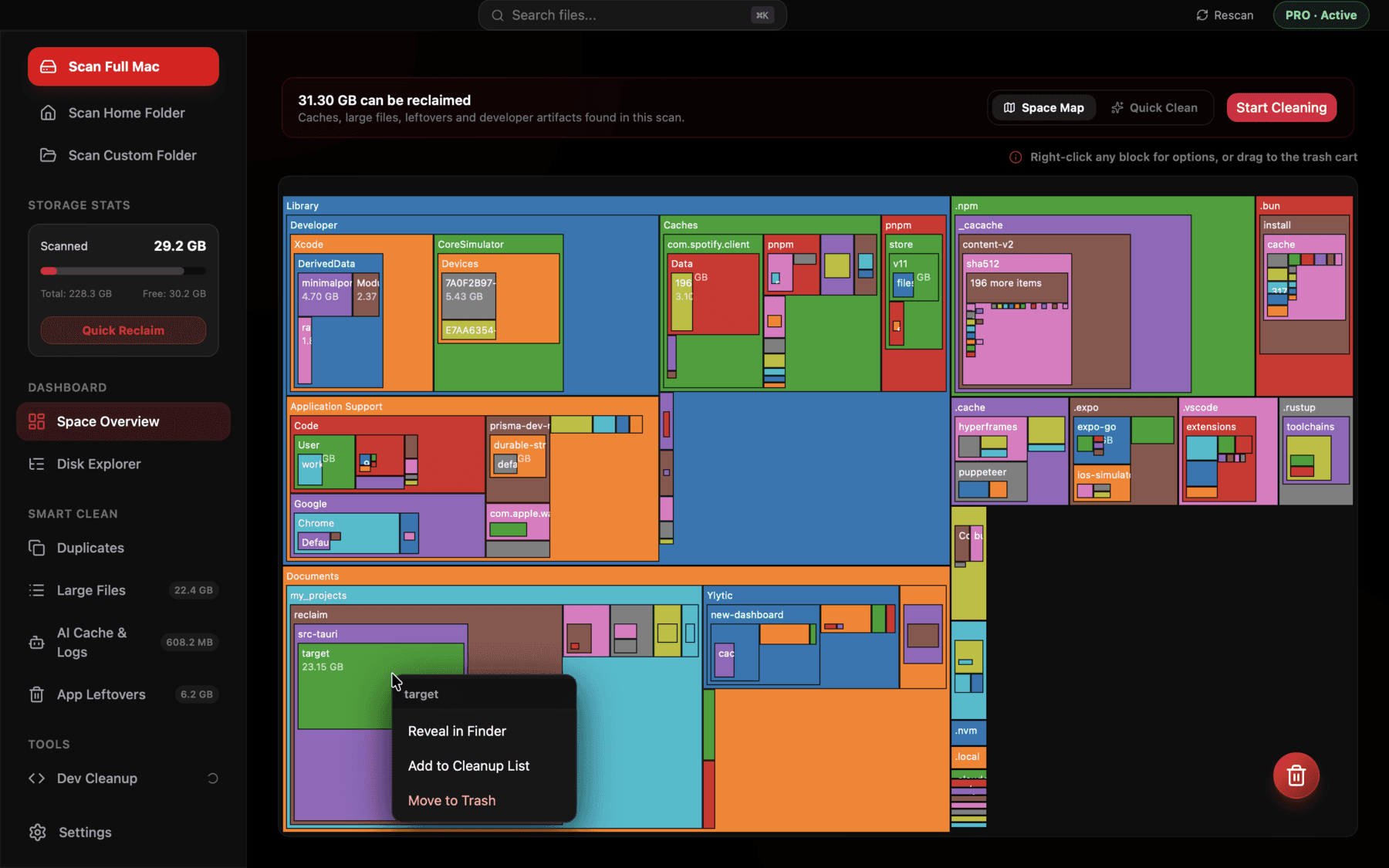
Hidden folders like ~/Library and dotfile caches show up sized right alongside your visible files, instead of being invisible in Finder.
What usually explains the gap
In practice, when someone's visible files add up to a fraction of their actual disk usage, the missing space is almost always split between ~/Library (app caches and support data), local Time Machine snapshots, and — for developers — some combination of node_modules, DerivedData, and Docker. Very rarely is it something exotic; it's just spread across places Finder was never designed to show you in the first place, which is why the discrepancy feels so much bigger than it actually is once you can finally see it all in one list.
It's worth resisting the temptation to assume something is wrong with the drive itself, or that macOS is somehow miscounting — checking the drive's SMART status with diskutil verifyDisk / is a reasonable sanity check if you're genuinely worried about hardware, but for the vast majority of people who see this exact symptom, the explanation is one of the categories above, not a failing disk or a corrupted filesystem.
A real example of how the gap adds up
To make this concrete: it's entirely plausible for a Mac with 40GB of visible personal files to actually be using 380GB, broken down roughly like this — 60GB in ~/Library across app support and caches, 90GB across a dozen node_modules folders from projects going back three years, 40GB of Xcode DerivedData that's never been cleared, 70GB tied up in local Time Machine snapshots after a busy month, 45GB of old Docker images and volumes, and the rest scattered across smaller app containers, logs, and forgotten installers. None of that shows up if you're only checking Documents, Desktop, and Downloads, and none of it feels like "your files" even though it's all sitting on your disk.
The specific mix will look different on your Mac depending on what you use it for, but the shape of the problem is almost always the same: a handful of regenerable or re-downloadable categories, invisible by default, adding up to many times what your actual personal files take up.
A quick checklist to run in order
If you want a specific sequence rather than a general explanation, this is the order that resolves the discrepancy fastest for most people, since it goes from most-commonly-responsible to least:
- Run du -sh ~/Library 2>/dev/null first — this alone often accounts for the majority of the gap.
- Run tmutil listlocalsnapshots / — check for snapshot buildup, especially if you've had a recent burst of file activity.
- Run du -sh ~/Library/Developer/Xcode/DerivedData and check for node_modules folders if you do any development work at all.
- Run docker system df if Docker is installed, even if you don't remember using it recently — old images and volumes linger.
- Check ~/Library/Mail and ~/Library/Messages/Attachments if you've had the same email or iMessage account active for years.
Frequently asked questions
Why doesn't Finder show all the files taking up space on my Mac?
Finder hides ~/Library and dotfiles by default, and it doesn't total nested folder sizes automatically the way du does. A large amount of real disk usage lives in places Finder never surfaces in a normal browsing session.
What is the fastest way to find hidden space usage on a Mac?
Run du -sh ~/* 2>/dev/null | sort -rh | head -20 in Terminal — it ranks your home folder's contents by real size including hidden folders, in seconds.
Can local Time Machine snapshots really account for missing storage?
Yes, sometimes tens of gigabytes. Run tmutil listlocalsnapshots / to see them, since they don't appear as regular files anywhere in Finder or in a manual folder-size count.
Is my swap file supposed to be several gigabytes?
It can be during heavy multitasking or memory-intensive apps — macOS grows swap files as needed and they're managed automatically, not something you should delete manually.
Why does du show a different total than Finder's Get Info?
Get Info's calculation can be slow to update and sometimes excludes certain hidden or system files that du includes by default, leading to a mismatch on the same folder.
Could iCloud be the reason my files don't add up locally?
Possibly in the other direction — if Optimize Mac Storage is on, some Photos or Desktop/Documents files may exist mainly in iCloud with only a local thumbnail, which would make your local total look smaller than expected, not larger.
See exactly what’s using your disk space.