Duplicate Photos and Files: The Silent Space Eater Most Cleaners Miss
You probably don't have a duplicate-files problem in the way you have a "one giant folder I forgot about" problem. Duplicates are worse to deal with precisely because no single one is ever big — it's the same 4MB photo copied nine times, the same PDF downloaded twice, the same project archive zipped and re-zipped after every edit. None of that trips an alarm. All of it adds up.
Most disk-cleanup tools either skip duplicate detection entirely or do it badly, matching on filename and size alone. Here's how duplicates actually accumulate, why naive matching misses most of them, and what actually works — with or without a dedicated app.
It's also one of the few categories of disk bloat where the fix is nearly risk-free once you've confirmed a real match — you're not weighing whether a cache folder is safe to clear, you're just choosing which of two identical copies to keep. That makes it a good starting point if you're new to cleaning up your Mac at all and want low-stakes wins before tackling anything that requires more judgment.
How duplicates actually accumulate
Duplication rarely happens on purpose. It's a side effect of completely normal workflows:
- Photos library re-imports — importing the same memory card or phone backup twice, or migrating between a Photos library and a folder of exported originals, leaves two full copies of the same images.
- AirDrop and Messages — receiving the same photo or document from multiple people, or sending it to yourself across devices, each save is a fresh, separately-named file.
- A Downloads folder that's never cleared — the same install script, PDF, or asset gets downloaded again months later because the original was buried, and macOS just appends "(1)" rather than warning you it already exists.
- iCloud Drive and Dropbox conflicted copies — a file edited on two devices while offline resolves into both a normal file and a "file (Conflicted copy — laptop, 2026-06-01).pdf" sitting right next to it.
- Manual "just in case" copies — duplicating a folder before a risky edit, then forgetting to delete the backup once the edit worked out fine.
Why filename and size matching isn't reliable
The simplest way to look for duplicates is comparing filenames and file sizes. It's also the least reliable, for two opposite reasons. First, false negatives: a genuinely identical file with a different name — IMG_4021.jpg exported a second time as vacation-photo.jpg — has identical bytes but won't match on name at all. Second, false positives: two unrelated files can easily land on the same size by coincidence, especially small text files or fixed-format documents, and get flagged as duplicates when their content is completely different.
There's a third failure mode worth knowing about too: modification dates and creation dates are metadata, not content, and they change constantly for reasons that have nothing to do with whether a file's contents changed — copying a file to a new drive, restoring from a backup, or even just some sync tools touching a timestamp during a routine check. None of that should ever be part of a duplicate-detection decision, and any tool that leans on dates to decide what's a duplicate is building on genuinely unreliable ground.
The only reliable way to know two files are truly identical is to look at their actual contents, not their metadata.
Content hashing: what it means and why it works
A cryptographic hash function takes a file's contents and produces a fixed-length fingerprint — run the same bytes through it twice and you get the same fingerprint every time; change a single byte anywhere in the file and the fingerprint changes completely. Two files with matching hashes are, for all practical purposes, byte-for-byte identical, regardless of what they're named or when they were created.
The practical challenge is that hashing every byte of every file on a disk is slow — computing a full SHA-256 over a 4K video takes real time, and doing that for every file upfront isn't necessary. The efficient approach groups files by size first (an instant check), then computes a cheap partial hash — just the first chunk of bytes — only within groups that already share a size, and only computes the full hash to confirm a match on files that pass the first two filters. That's the difference between a duplicate scan that takes minutes and one that takes hours.
A special case: Photos library duplicates
Photos.app has its own built-in duplicate detection, found under Albums > Utilities > Duplicates (or via the Photos menu on newer macOS versions), which specifically compares images and videos by content and offers a Merge option that combines duplicate entries while keeping the highest-quality version and preserving metadata like albums and favorites. It's worth running this first if your duplicates are mostly photos, since it understands Photos-specific concepts — like keeping edits and Live Photo video components intact — that a generic file-level duplicate finder outside the Photos library structure won't touch safely.
Generic duplicate finders are better suited to the rest of your disk — Downloads, Documents, project folders, an old external drive's backup — where there's no equivalent built-in tool at all.
Doing it manually with Terminal
If you'd rather check a specific folder yourself before reaching for any tool, two approaches work well for smaller sets of files. `fdupes` is a purpose-built command-line utility (installable via Homebrew with `brew install fdupes`) that does exactly this: point it at a directory with `fdupes -r ~/Downloads` and it recursively finds duplicate files by comparing size first, then content, and can list or interactively delete matches.
Without installing anything, you can hash a suspect folder manually with `shasum`. For example, `find ~/Downloads -type f -exec shasum {} \; | sort` prints a hash next to every file, sorted so identical files land on adjacent lines — any hash appearing more than once is a confirmed duplicate. It's slower than a dedicated tool and doesn't scale well past a few thousand files, but it's exact, requires nothing beyond what macOS already ships with, and is a good way to spot-check one folder without installing anything new.
Where this gets tedious at scale
The manual approaches above work well for one folder at a time. The actual problem most people have is duplicates scattered across ~/Downloads, an old Photos library, a Dropbox folder, and a handful of "backup" folders on the same disk — nobody manually runs fdupes against their entire home directory and then reviews a wall of terminal output to decide what's safe to remove.
This is the specific gap Reclaim's duplicate finder targets: it scans the whole disk using the same size-then-partial-hash-then-full-hash approach described above, groups matches together with a visual preview so you can confirm they really are the same file before acting, and lets you bulk-select which copies to remove while keeping one. As with everything else in the app, removal goes to Trash, not a permanent delete — which matters more here than almost anywhere else, since a false-positive duplicate match is exactly the kind of mistake you want to be able to undo.
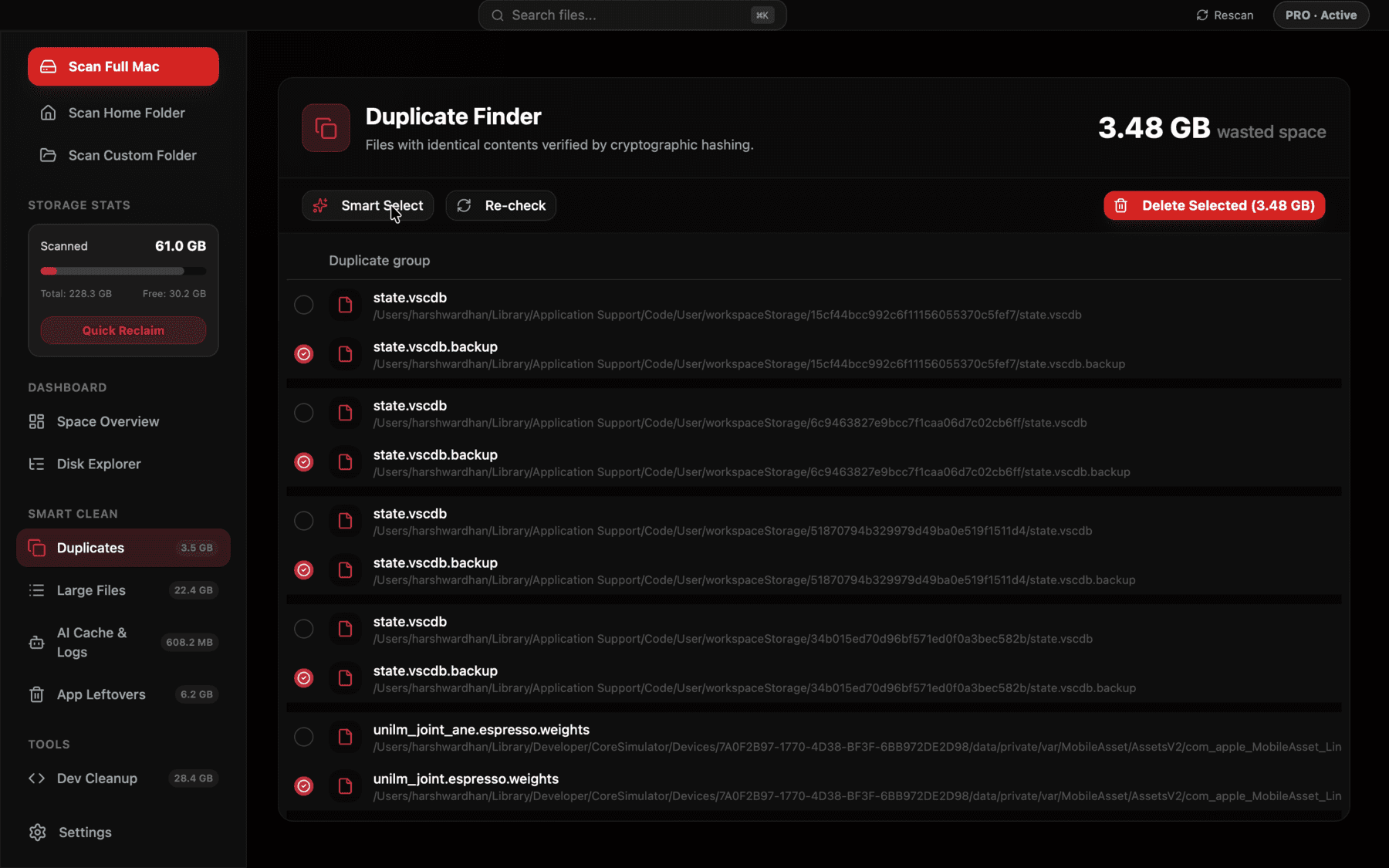
Matches are grouped by confirmed content hash with a preview, so you can verify before removing.
What to do once you've found real duplicates
Confirming a match is only half the job — deciding which copy to keep still takes a moment of judgment. Prefer the copy in its "natural" location (inside your Photos library or a project folder) over one sitting loose in Downloads, prefer the one with the more complete filename or metadata, and when genuinely unsure, keep the newer one, since it's more likely to reflect the version you were last actually working with.
It's also worth checking whether the duplicate is referenced from anywhere before removing it — a duplicate image embedded in an old Keynote file or linked from a document, for instance, should stay put even if an identical copy exists elsewhere, since removing the wrong one could leave a broken reference rather than freeing meaningful space.
A reasonable habit going forward
Duplicates aren't dangerous the way a misconfigured cleanup script is — the risk is nearly all downside-free once you've confirmed a match, since you're removing an exact copy of something you're keeping elsewhere. The habit worth building is checking a duplicate scan every few months in whichever folder tends to accumulate them for you — Downloads and a Photos library are the two most common offenders — rather than waiting until storage pressure forces the question.
Frequently asked questions
How do I find duplicate files on my Mac?
For a single folder, the free command-line tool fdupes (via Homebrew) or a manual `shasum` comparison both work by hashing file contents. For a whole-disk scan with a visual review step, a dedicated duplicate finder like Reclaim's is faster and easier to verify before deleting.
Why do I have so many duplicate photos?
The most common causes are Photos library re-imports, AirDrop or Messages saves creating separately-named copies, and iCloud Photos syncing across multiple devices during a migration or backup restore.
Is comparing file size enough to find duplicates?
No. Two unrelated files can share a size by coincidence, and two truly identical files can have different names, so reliable duplicate detection needs to compare actual file content, typically via a hash function, not just size or filename.
What does content-hash duplicate detection mean?
It means computing a fingerprint from a file's actual bytes rather than its name or metadata. Identical content always produces an identical hash, which is the only reliable way to confirm two files are truly the same.
Is fdupes safe to use?
Yes — fdupes is a long-established, open-source command-line tool. By default it lists duplicates without deleting anything; deletion requires an explicit interactive flag, so it won't remove files unless you tell it to.
See exactly what’s using your disk space.