GitHub Copilot and VS Code AI Extensions: The Hidden Storage Cost
Installing GitHub Copilot in VS Code feels lightweight — it's an extension, not a separate app, and there's no visible download progress bar the way there is for a local model. But VS Code extensions, especially AI-oriented ones, are allowed to cache freely under VS Code's own Application Support directory, and Copilot along with similar AI extensions do exactly that.
The catch is that this storage is shared infrastructure — the same folders hold cache data for every extension you've ever installed, not just AI ones, which makes it harder to tell how much of the total is actually attributable to Copilot versus everything else.
This matters more for developers who treat VS Code as their primary editor for years at a time rather than switching tools often — the longer an installation has been in continuous use, the more extension history, workspace history, and version-cache churn it's accumulated, none of which gets reviewed unless something specifically prompts you to look.
None of it individually looks alarming — a few hundred megabytes here, a gigabyte there — which is exactly why it rarely gets cleaned up. There's no single moment where VS Code prompts you to review extension storage, so it just keeps accumulating in the background of an app most people have running for eight hours a day.
The relevant VS Code storage locations
On macOS, VS Code's user data lives under `~/Library/Application Support/Code`. Two locations matter most for extension and AI-related storage:
- ~/Library/Application Support/Code/User/globalStorage — per-extension persistent storage; each extension gets its own subfolder named by its publisher.extension ID, e.g. github.copilot
- ~/Library/Application Support/Code/CachedExtensionVSIXs — cached installer packages for extensions, kept around after install
- ~/Library/Application Support/Code/User/workspaceStorage — per-project state, similar in structure and purpose to Cursor's equivalent folder since Cursor forked from this same codebase
Checking what Copilot specifically is using
Copilot's own globalStorage folder is usually modest — a few tens of megabytes for completion-related state and settings cache. The bigger contributor tends to be workspaceStorage, since Copilot and Copilot Chat both maintain per-project context and completion history that accumulates across every repository you've opened with the extension active.
It's worth noting that Copilot's model inference itself happens server-side — unlike Ollama or LM Studio, there's no multi-gigabyte model file being stored locally for Copilot to work. Everything discussed here is cache and state overhead from the extension's local bookkeeping, not model weights, which is why the totals involved are meaningfully smaller than what a local model runner accumulates, even if the underlying pattern of quiet, unmonitored growth is the same.
- du -sh "~/Library/Application Support/Code/User/globalStorage/github.copilot"* — Copilot's own global storage
- du -sh "~/Library/Application Support/Code/User/workspaceStorage" — total workspace storage across all projects, shared by every extension
- du -sh "~/Library/Application Support/Code/CachedExtensionVSIXs" — cached extension install packages
Workspace-level completion caching specifically
Beyond the general globalStorage and workspaceStorage folders every extension shares, Copilot Chat maintains its own per-workspace conversation history and context cache, since chat sessions are tied to whichever project you were working in at the time. On a repository you've used Copilot Chat in extensively over months, this history can meaningfully outgrow the equivalent data for an extension that only does inline completions, since a chat transcript retains far more content per interaction than a single accepted suggestion does.
There isn't a dedicated command to clear just this chat history independently of the rest of workspaceStorage — clearing it means removing that workspace's whole storage folder, which also resets any other per-project extension state at the same time.
It's not just Copilot
If you've tried more than one AI coding extension — Codeium, Tabnine, Continue, Sourcegraph Cody, or others — each maintains its own subfolder under globalStorage, identified by its own publisher.extension ID, and its own workspace-level state. Uninstalling an extension through VS Code's Extensions panel removes the extension itself but does not reliably clean up its globalStorage folder — that data is explicitly designed to persist so a reinstalled extension can pick up where it left off, which means abandoned extensions leave storage behind indefinitely.
This is worth checking directly: `ls "~/Library/Application Support/Code/User/globalStorage"` lists every extension that has ever stored data, including ones you uninstalled months ago. Cross-referencing that list against your currently installed extensions in VS Code often turns up a few surprises.
It's genuinely common among developers to have tried three or four AI coding assistants over the past couple of years as the space has moved quickly — an early Codeium trial, a Tabnine evaluation before it added agentic features, a brief stint with Continue for its open-source model support. Each of those left a folder behind under globalStorage that nothing in VS Code's interface ever surfaces again once the extension itself is gone, and each folder can range from a few megabytes for a lightweight completion tool up to several hundred megabytes for an assistant that cached embeddings or chat history locally.
CachedExtensionVSIXs and version churn
Every time an extension updates, VS Code can leave the previous version's install package cached under CachedExtensionVSIXs rather than removing it immediately. For an extension that updates frequently — and Copilot is updated often — this folder can hold several old versions' worth of installer data that serve no purpose once the update has completed successfully. This folder is generally safe to clear with VS Code closed; it gets repopulated as needed on future installs.
Individually, a single cached VSIX package is usually only a few megabytes to a few tens of megabytes, so this folder rarely accounts for the bulk of AI-related storage on its own. It's worth clearing mainly because it's one of the few folders here with essentially zero downside to removing — unlike globalStorage or workspaceStorage, nothing in it represents state you'd lose by deleting it.
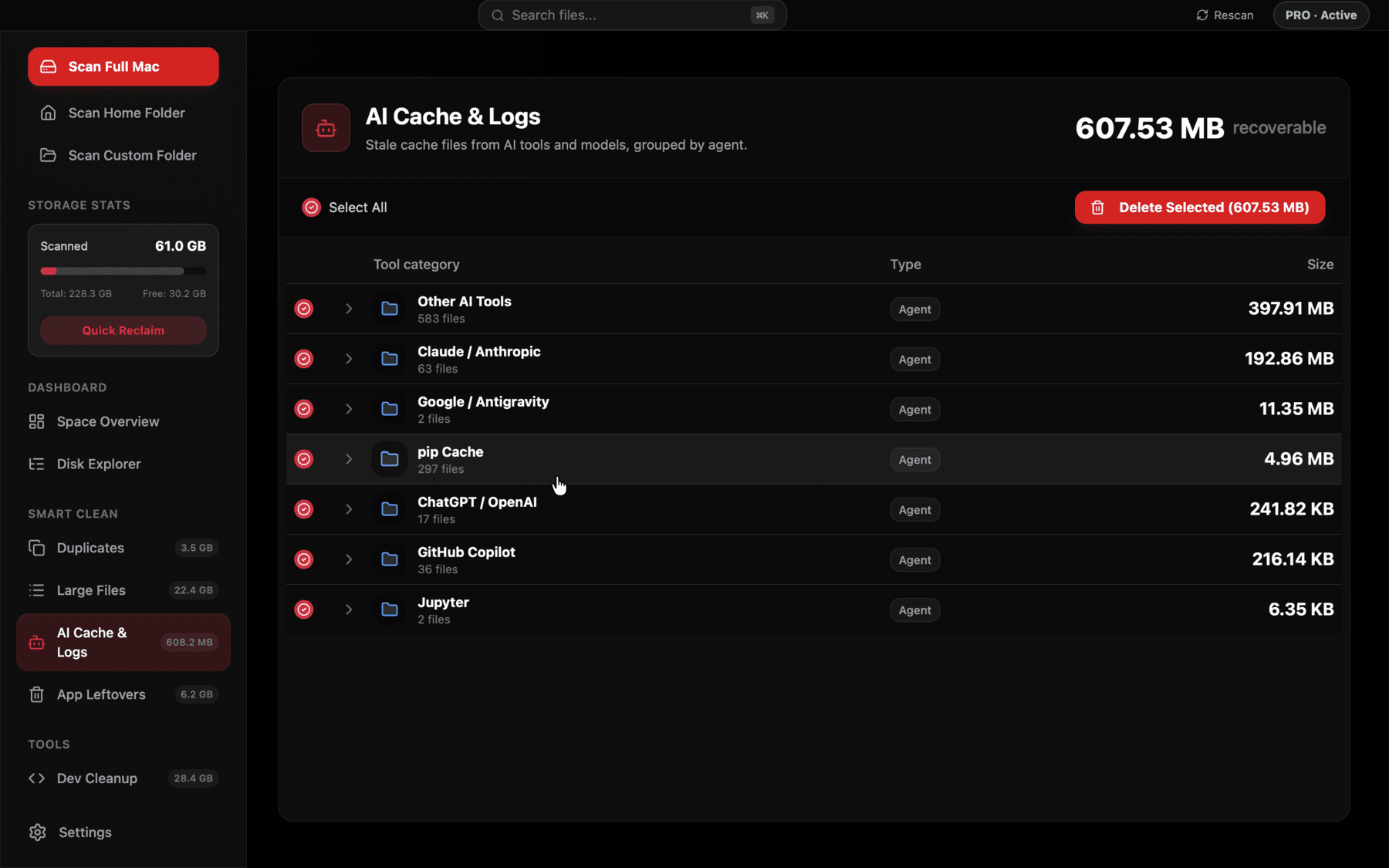
Reclaim's AI Cache & Logs view breaks down VS Code's globalStorage by individual extension, so you can see exactly how much Copilot, Cody, or a leftover extension you uninstalled is actually holding.
Cleaning up safely
Quit VS Code completely before touching any of these folders — the same caution that applies to Cursor applies here, since they share the underlying codebase and storage behavior. For extension-specific globalStorage folders, only delete ones matching extensions you've actually uninstalled or don't plan to use again; deleting the folder for an extension you're still using just means it rebuilds its local state from scratch, which is usually harmless but occasionally means re-authenticating or losing extension-specific settings.
workspaceStorage cleanup follows the same pattern described for Cursor: each folder is named by hash, and the `workspace.json` file inside it names the original project path, letting you confirm whether that project still exists before removing the entry.
A reasonable baseline to expect
For a single active developer using VS Code with Copilot and one or two other AI extensions across a normal number of projects, a combined total of a few gigabytes across these locations is typical and not worth worrying about. It's when you've been through several AI extensions over time, opened dozens of workspaces, or gone a long stretch without ever clearing CachedExtensionVSIXs that this can reach double-digit gigabytes — still smaller than local model weights, but real, and entirely invisible unless you go looking.
The comparison worth keeping in mind is scale, not category: where an Ollama or LM Studio setup can lose 100GB or more to forgotten model weights, VS Code's extension-related storage tends to top out in the low tens of gigabytes even in a fairly neglected setup. That doesn't make it not worth cleaning — a developer running low on boot-drive space is still glad to find an extra 10-15GB — it just means the return on a quick cleanup pass here is smaller per gigabyte of effort than tackling model weight directories first, if both are present on the same machine.
Extensions Insiders builds and multiple VS Code variants
If you've ever installed VS Code Insiders alongside the stable release, or use both VS Code and a fork like Cursor or Windsurf, each maintains a fully separate Application Support directory and its own copy of every extension's globalStorage — Code for stable, Code - Insiders for the Insiders build, and so on. It's easy to forget that an old Insiders install from months ago is still sitting on disk with its own full set of extension caches, especially since Insiders updates so frequently that people tend to just leave the stable version around as a fallback and stop opening it.
Checking `ls ~/Library/Application\ Support/ | grep -i code` is a quick way to see every VS Code-family variant that has ever stored data on the machine, which is often more than people expect.
Frequently asked questions
Where does GitHub Copilot store its cache in VS Code?
Primarily under ~/Library/Application Support/Code/User/globalStorage/github.copilot* for global state, with additional per-project data under User/workspaceStorage shared across all installed extensions.
Does uninstalling a VS Code AI extension delete its cached data?
No. Uninstalling through the Extensions panel removes the extension itself, but its globalStorage folder is left in place by design, so it can resume state if reinstalled later.
What is CachedExtensionVSIXs in VS Code?
A folder under ~/Library/Application Support/Code that stores cached installer packages for extensions, including old versions left behind after updates. It's generally safe to clear with VS Code closed.
How much disk space do AI extensions typically use in VS Code?
Usually a few gigabytes combined for an active developer with one or two AI extensions, though this grows with more extensions tried over time and more workspaces opened.
Is it safe to delete an extension's globalStorage folder?
Yes for extensions you no longer use — it just means a fresh install starts from scratch. For extensions still in use, deleting it is usually harmless but may require re-authentication or reset settings.
See exactly what’s using your disk space.