What Happens to App Data When You Uninstall on Mac (Spoiler: It Doesn't Leave)
Drag an app to the Trash, empty it, and macOS acts like the job is done. It isn't. Uninstalling on a Mac, by default, only removes one thing: the .app bundle itself, sitting in /Applications. Everything else that app ever wrote to disk — preferences, cached data, support files, background helper processes — stays exactly where it was.
This isn't a bug in any particular app. It's how macOS is designed, and it's why a Mac that's had a hundred apps installed and uninstalled over the years accumulates a slow, invisible layer of leftovers that never shows up when you're looking for something to delete.
It's a genuinely common source of confusion, too — people assume that because the icon is gone from Launchpad and the app no longer appears in Applications, nothing related to it remains anywhere on the disk. For most apps, that assumption is simply wrong.
Why macOS doesn't have a real uninstaller
Unlike Windows, which has a centralized Programs and Features list with an Uninstall action per app, macOS treats an app as just a folder — the .app bundle is a self-contained package, and "installing" an app is often nothing more than copying that bundle into /Applications. Removing it is the same drag-to-Trash operation as deleting any other file. There's no built-in registry of what else that app created elsewhere on disk, and no hook that runs on delete to clean it up.
That design is part of why Mac apps are so simple to install in the first place — no installer wizard required for most of them. The tradeoff is that uninstalling is equally simple, and equally incomplete.
Where the leftovers actually live
Almost everything an app leaves behind after you delete its .app bundle lives inside your user Library folder — ~/Library — which Finder hides by default. The main places to check:
- ~/Library/Application Support/ — the most common location for an app's actual data: settings files, local databases, downloaded assets, license files. Often named after the app or its developer.
- ~/Library/Caches/ — temporary or regenerable data the app cached for performance. Usually named with the app's bundle identifier, like com.developer.appname.
- ~/Library/Preferences/ — small .plist files storing app settings, one or a few per app, again named by bundle identifier.
- ~/Library/Containers/ — for sandboxed apps (most Mac App Store apps), an entire isolated folder structure per app, which can include a full copy of that app's Application Support and Caches inside the container.
- ~/Library/LaunchAgents/ (and /Library/LaunchAgents/ for system-wide ones) — background helper processes some apps register to run automatically, which keep running even after the main app is deleted unless explicitly removed.
Finding leftovers manually
To check for leftovers from a specific app you've already uninstalled, open Finder, press Command+Shift+G to jump to a folder, and check each of the paths above for a folder matching the app's name or its developer's name. Bundle identifiers (the com.developer.appname format used in Caches and Preferences) aren't always obvious from the app's display name, but they're usually a recognizable variant of it.
For a more complete picture of what's actually installed at the system level, `pkgutil --pkgs` lists every package receipt macOS has recorded from .pkg-based installers (common for larger apps, developer tools, and anything requiring admin privileges to install). Cross-referencing that list against what's actually still in /Applications can surface installer-based leftovers that a simple Library folder search misses — receipts don't take up meaningful space themselves, but they're a reliable trail to what has and hasn't actually been removed.
If you want to check the size of a specific suspected leftover folder before deciding whether it's worth removing, `du -sh ~/Library/Application\ Support/AppName` from Terminal gives you a quick total. Running the same command against ~/Library/Caches for a specific bundle identifier works the same way, and is a reasonable gut-check before deleting anything by hand.
LaunchAgents: the leftover that keeps running
Some apps — background sync clients, menu bar utilities, update checkers — register a LaunchAgent (or a system-wide LaunchDaemon) so a small helper process starts automatically at login, independent of whether the main app is running. These are .plist files in ~/Library/LaunchAgents (per-user) or /Library/LaunchAgents and /Library/LaunchDaemons (system-wide), and deleting the app itself doesn't unregister them.
You can list what's currently loaded with `launchctl list | grep -i appname`, substituting a guess at the developer or app name. A matching result means a process tied to that app is still active in the background even though the app itself is gone — worth investigating specifically, since unlike a dormant cache folder, a stray LaunchAgent is actively consuming a small amount of CPU and memory, not just disk space.
Why this adds up more than it seems like it should
Individually, one uninstalled app's leftovers might be a few megabytes of preferences and a modest cache folder — easy to shrug off. But most people install and remove far more apps over a Mac's lifetime than they'd guess: trial versions, one-off utilities, apps replaced by a better alternative, browsers, VPN clients, old chat apps. Multiply a few dozen forgotten leftovers by cache folders that can individually reach hundreds of megabytes or more, and it becomes a real, if quiet, chunk of disk space with nothing currently using it.
The tricky part about cleaning it up manually is confidence: it's easy to find a folder in ~/Library/Application Support named after an app, but harder to be sure that app isn't still installed under a different name, or that the folder isn't shared by something else you still use.
A realistic example
Say you installed a video editor two years ago, tried it for a week, and dragged it to the Trash when you decided it wasn't for you. Left behind: a Caches folder that may have grown to a few gigabytes from render previews and thumbnails, an Application Support folder with project files and license data, a Preferences .plist, and possibly a Container folder if it was sandboxed. None of that shrinks or expires on its own — it sits there at whatever size it reached the day you stopped using the app, indefinitely, until something goes looking for it specifically.
Multiply that by every trial app, every "let me just see what this does" download, and every tool you replaced with something better over the years, and the leftover total on a Mac that's several years old is often bigger than people expect the first time they actually go looking.
Finding true leftovers automatically
This is specifically what Reclaim's App Leftovers view is built to solve: it cross-references what's actually still in /Applications against everything sitting in the Library locations above, and surfaces only the folders that belong to apps you no longer have installed — not a generic list of every Caches folder on your disk, which would flag plenty of stuff still in active use.
As with the rest of the app, nothing is deleted directly — matches are shown for review, and removing them moves the folders to Trash, so a mistaken match is recoverable rather than a permanent loss.
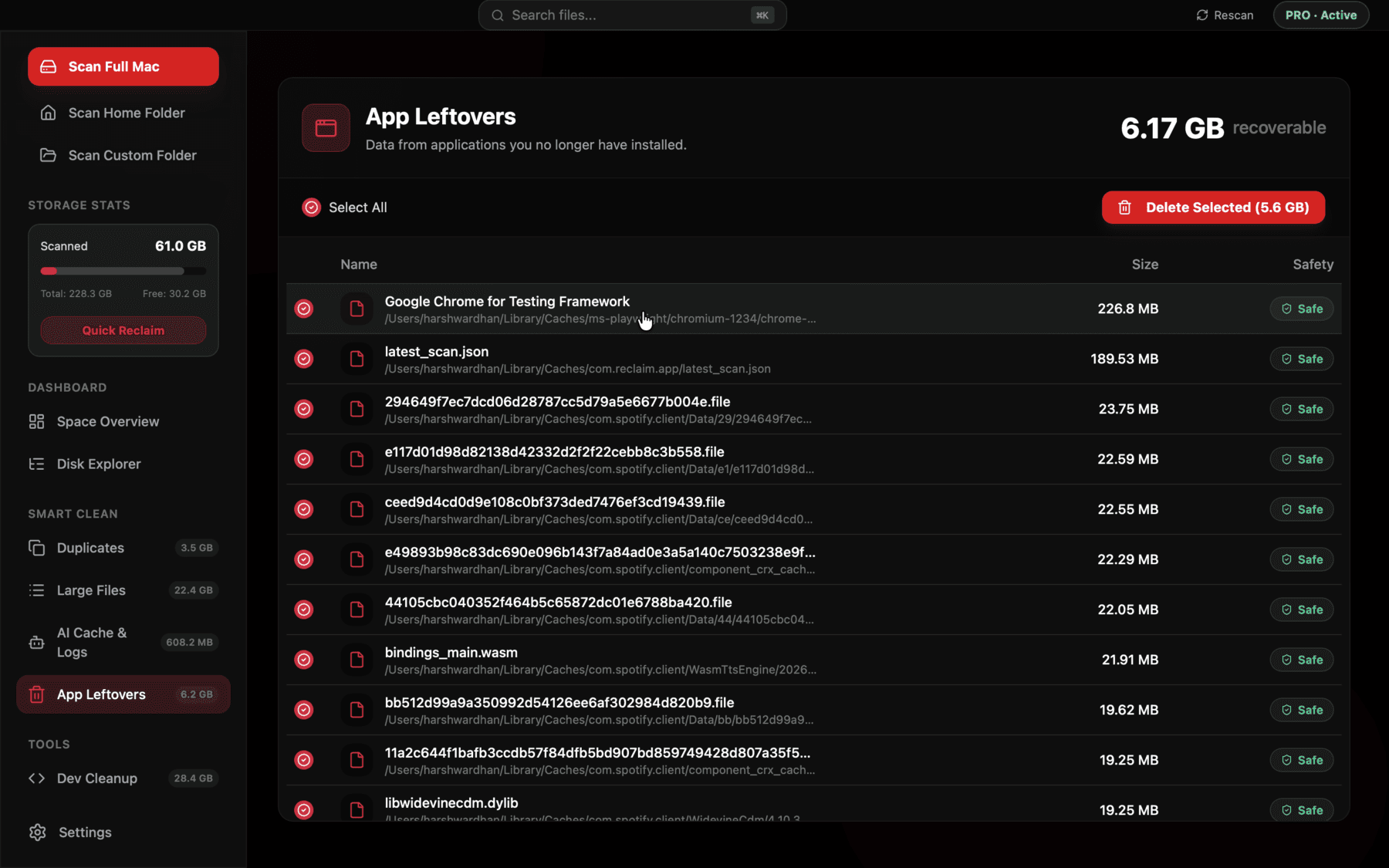
Leftovers are matched against what's actually still installed, not just listed by folder name.
Mac App Store apps and Containers
Apps distributed through the Mac App Store, and increasingly some distributed directly, run inside App Sandbox, which confines each app to its own isolated folder under ~/Library/Containers/com.developer.appname/. Everything that app writes — its own private Application Support, Caches, and Preferences equivalents — lives inside that one container folder rather than the shared top-level Library locations.
This is actually easier to clean up manually than the non-sandboxed case, precisely because it's consolidated: one container folder per app, named by bundle identifier, rather than scattered across three or four separate top-level Library folders. The catch is the same as everywhere else — you have to already know the app's bundle identifier or recognize its developer's naming convention to spot it with confidence.
A quick habit worth adopting
The cleanest long-term fix is checking ~/Library/Application Support and ~/Library/Caches right after you uninstall an app, while its name is still fresh in your mind — it takes thirty seconds and avoids the leftover ever becoming unidentifiable months later. For everything already accumulated from years of past uninstalls, a periodic pass — manual or automated — is the only realistic way to claw it back.
Either way, the underlying lesson is the same one that applies to most invisible storage bloat on a Mac: nothing about macOS actively hides this data out of malice, but nothing actively surfaces it either. Left alone, it just accumulates quietly in the background of a computer you use every day, which is exactly why it's worth a deliberate look every so often rather than assuming a clean-looking Applications folder means a clean disk.
Frequently asked questions
Does deleting an app from Applications remove all its data?
No. Dragging an app to Trash only removes the .app bundle in /Applications. Preferences, caches, and support files in ~/Library remain untouched unless removed separately.
Where does app data live on a Mac?
Mainly in ~/Library/Application Support, ~/Library/Caches, and ~/Library/Preferences, plus ~/Library/Containers for sandboxed apps. All are inside the hidden user Library folder.
How do I completely uninstall an app on Mac?
Delete the .app bundle, then manually check ~/Library/Application Support, ~/Library/Caches, and ~/Library/Preferences for folders or files matching the app's name or bundle identifier, and remove those too.
What does pkgutil --pkgs do?
It lists every package receipt macOS has recorded from .pkg-based installers, which helps identify what was actually installed at the system level, separate from what's currently visible in /Applications.
Is it safe to delete files in ~/Library/Caches?
Generally yes — cache folders are meant to be regenerable, and apps rebuild what they need. The main risk is deleting a cache for an app you're still actively using, which just costs it a slower first relaunch, not lost data.
See exactly what’s using your disk space.